Showing posts with label Win10. Show all posts

Monday, April 22, 2019

Trying out Lubuntu 19.04

This isn't a full review of the distro, just a quick walk-through of a distro I was using  over a few years.  I moved off to AntiX last year as I wanted to cut back  the number of distros I was running at home to make it easier for me to manage my home network.  Lubuntu was OK, but, I was looking for a lighter and faster distro for my eight year old netbook and AntiX worked quite well.

With the latest one I wanted to see what it looked like and how it worked.  The installation went quite well using VirtualBox.  I tweaked the setup a  bit.  I changed from 1 gig to 4 gigs of memory (the netbook has two), 2 CPUs (matching the netbook) and the default screen from 800x600 (netbook) to 1360x768 (making it readable on my WIN10 machine).


The initial profile works quite well and is responsive on the machine as set up.  It feels snappy and doesn't use a lot of system resources. 
As you can see above in a shell and Htop it doesn't use a lot of memory when it starts up and I am fairly sure I can tweak the startup to use less by turning off processes I don't want or need.

One of the first tweaks I made is to change the double-click mouse to single-click.  I have been using that for years and that is what I am comfortable with.

Using the Muon package manager was quite easy and is close enough to working like Synaptic that I didn't notice a big difference.  The only difference is when you search.  In Synaptic you type in the word(s) and press [SEARCH] and in Muon it searches as you type.

I did a 'Check for Updates' after install and installed the few updated packages that were there.  The process was quick even in the VM and while it was doing that I launched Firefox and tweaked the settings there while the system updated.  The one package I hoped was there is PaleMoon.  I use that to play Runescape Old School on my other Linux boxes as it still supports the Java Plugin and Firefox doesn't.  Palemoon does have a Linux download option and that is something I need to explore later on and the JRE.  For that I will look at the netbook for the packages I have installed and mirror that setup in the VM.


My next step is to burn a USB stick with the distro and see how it launches and runs on the netbook and my main Linux box.  If that looks good I may convert the old media box from Vista (shudder) to Linux and the wife's laptop also.  AntiX is good, but, so far Lubuntu looks pretty good too.

Overall if you have an older machine this may be a distro to check out if you don't want to go to AntiX..

Sunday, May 06, 2018

Looking for a new VPN for my various devices

For some time I have been making use of the Opera VPN software for my Android tablet and phone.  I liked it as it 'just worked' and didn't have a major impact on either device for performance.  However, it has been discontinued and I am now looking for a new VPN for my devices.

I don't use VPN very often, just when I am out and I need to quickly check my mail or do a quick web search.  The various malls I do go to have 'free' WIFI, but, I don't want them to harvest my information and I DON'T want anyone see my passwords for mail, web sites I log on to.  I prefer what I do and where I go is my business and no one else.

What am I looking for in a VPN:

  • Minimal impact on my Android devices.  I don't want something that is a battery hog or uses so much CPU that the machine isn't responsive.
  • Preferably open source.
  • Minimal cost.  Free would be nice as long as the ads are not obtrusive.
  • They don't record much information, preferably nothing about my connection.
  • Reasonable privacy policy.  Too many companies ask you to sign away absolutely everything in the quest to protect themselves no matter how badly they screw things up for you.  They also seem to want all of your information and be able to sell it to anyone.
  • It would be nice that there are Linux and Windows versions.  My netbook and notebook are Linux (I do have openvpn there) and while I don't travel with them often it would be nice to have a good VPN for them that is the same as my Android devices.  My one Windows box never travels with me, but, just in case it would also be nice to have the same VPN running on it.  I prefer just one package so that I know that I get consistent protection and not have to learn multiple packages.
I am not going to rush into getting a new VPN, but, I will take the time to search for my replacement as this isn't a high priority item.  So far a few sites that I will be reading and starting my search with are:

The above sites are only my starting point that I will be using.  Once I pick a few packages I will be downloading them and seeing how they run and the impact on my devices.

Update 2018/06/09:

I installed windscribe as it appears to be free, has a fair limit per month.  I don't need the fastest or most data as I only need it a few times a month.  It works well enough on the tablet and I couldn't tell it was running.

Sunday, May 21, 2017

Trying out Open Live Writer for my Blogger sites

I have been using Firefox for Blogger for my creating and editing various blog articles.  While it works I didn’t have any offline tools to compose my blogs unless I was using my Android tablet.  My Android tablet has an app that does the basic work quite well, but, I was looking for a similar tool for my Windows machine.  I am trying out a new package called Open Live Writer that may allow me to compose offline.  If you are familiar with Word or Libre Office you will be comfortable with the editor.  In Windows 10 this application is available in the app store just a click away.

The initial set up was a bit of work as I have multiple blogs, but, it took only about 15 minutes to download the various settings for all of my blogs.  As I go on I also have been adding automatic links.  This is a nice feature as I can use a word/phrase and the package will automatically insert the link the first time I use it in my blog.  The category option is very nice as it is a drop down list and I can click on the tags appropriate to the blog and quickly add new tags.

The tool is basic, but, it does what I need it to do.  There are a couple of things I would like to see in the future.

  • Import of past postings so I can see and modify the post;
  • Change the default font and size.

Sunday, January 01, 2017

Software and Tools - Backups

One of the most important things you can do after you secure your device is to make regular backups and just as important is to test your backups.

Why backup?

  • Hard drives fail.  It doesn't matter how new the drive is or even if it is a SSD they will fail sooner or later;
  • You lose your device or it is stolen;
  • You drop your device and now it does not work;
  • When you patch or update your operating system it fails.  It doesn't matter the O/S you are using, I have had failed Linux updates and it required me to rebuild the machine;
  • You migrate to a new device and want all the files on the old machine moved to the new machine;
  • You finger slips and you accidentally delete an important file/directory; 
  • There is a disaster (ie. fire or flood);
  • Your device(s) infected with a virus or a trojan.  Again, it doesn't matter the O/S you are using, there are nasty programs out there that works in Windows, Linux and OS/X.
If one or more of the above happens you will need a backup so that your important documents are available to you when you rebuild the device or copy to a new device.  I have had people come to me with dead and dying devices asking if I can pull off their data and they have not made any backups.  Too often I cannot recover all of their files and important documents, images, videos are lost and they don't have any backups.

Things to think about

How often do you backup? 

  • That all depends on your personal preferences and how many documents you are adding to your device;
  • If you don't create very many then it may be safe to backup infrequently (monthly); 
  • If you create a lot of files (like scanning family photos), then frequent backups (daily) may be a good thing;
  • Once you set a schedule stick to it.  I put up a recurring reminder in Google calendar to remind me of when backups should be run.  Also you can set up a recurring task in Windows and Linux (cron) to run your backup scripts on a set schedule.

How many copies do you want to keep?  

  • Again this is a personal preference, but, multiple full backups is a good thing just in case one fails for some reason; 
  • An option here is a monthly full backup and then weekly backups of new/changed (differential backups) files;
  • Another reason as backups may fail and if you have only one copy then you have nothing to go back to.  I know this happens as decades ago when at work we were doing a DRP (Disaster Recovery Plan) exercise at work and one of the corporate backup tapes failed.  It wasn't a major problem as we did keep multiple backups and restored from an older image;

Off-site location for your backups?  

  • It doesn't matter if you have a good set of backups if you cannot get access to your site;
  • How secure is the off-site.  If you have sensitive information you don't want anyone getting access to the backup;
  • You should also figure out who should have access to your backups and let them know where it is and how they can get access to the backups if required;

Media for backups.  

  • Decades ago floppies were the media, then CDs followed by USB drives;
  • When you backup make sure that the tools, hardware and software is there to allow you to read the backups.  An example of this is some time ago I had to pull off backups from my father-in-law 3.5" floppy drives as he didn't have a floppy drive in his machine.  We were lucky in that I have an external 3.5" USB floppy drive for this and it was set up in Linux.  I also have an external CD drive and a blu-ray drive (call me paranoid) so I can pull files from backups in that format;
  • To the cloud.  Don't depend on that as your main backup as it may not be there when you need it.  I like Google drive for a secondary backup myself and the bonus is that the files I put there are available anywhere I have a web browser (and the firewall allows access).  With the various sites getting hacked I also don't keep files there that are sensitive and when I do put up a file of that nature I use encryption on the file/directory.  I also have a small script using GRIVE in Linux to pull a backup from GOOGLE drive to my machine.

Software and file format for backups.  

  • Over time operating systems do change and the software that did the original backup may not run on your new device and the new devices may not even be able to read your backups;
  • I tend to work with the lowest common denominator for backups that does work across platforms.  I prefer to use "ZIP" files as I know Windows and Linux both can work with that file format.  I assume OS/X will be able to read them too, but, I don't use that operating system so I am not 100% sure;
  • On my Linux machine I am partial to KBACKUP.  It is fairly easy to set up and use and it stores the files in a format that I can open in an Linux distro and Windows;
  • On my Windows box I use a simple XCOPY routine.  It isn't pretty, but, it works and the files are in a format that my Linux machines can read;
  • For my Android devices they get backed up to Google drive;
  • Several times a year I take one of my backups and plug it into a different machine to see if it is readable and I can pull one or more files off the backup.  Make sure what is backed up can be restored!  It is also a quick and easy test to see if your restore steps work and if there is anything else you should be doing when restoring from a backup;

When you restore.

  • If the restore is due to a virus or a trojan I strongly recommend that you don't ever use your backups until you have a clean and patched machine.  If the machine is still infected and the media you are using can be written to you don't want those backup files corrupted;
  • Make a checklist of what you need to do the restore and the steps performed when doing a restore.  This includes steps on how to verify that the restore worked;

My KBACKUP routine

Here are screen shots of my starting KBACKUP, running the backup and when it finishes.
Shortcut in my toolbox

Loading my backup profile

Directory & file list for backup

Backup running

Backup done with filename

Monday, November 28, 2016

Software and Tools - Email

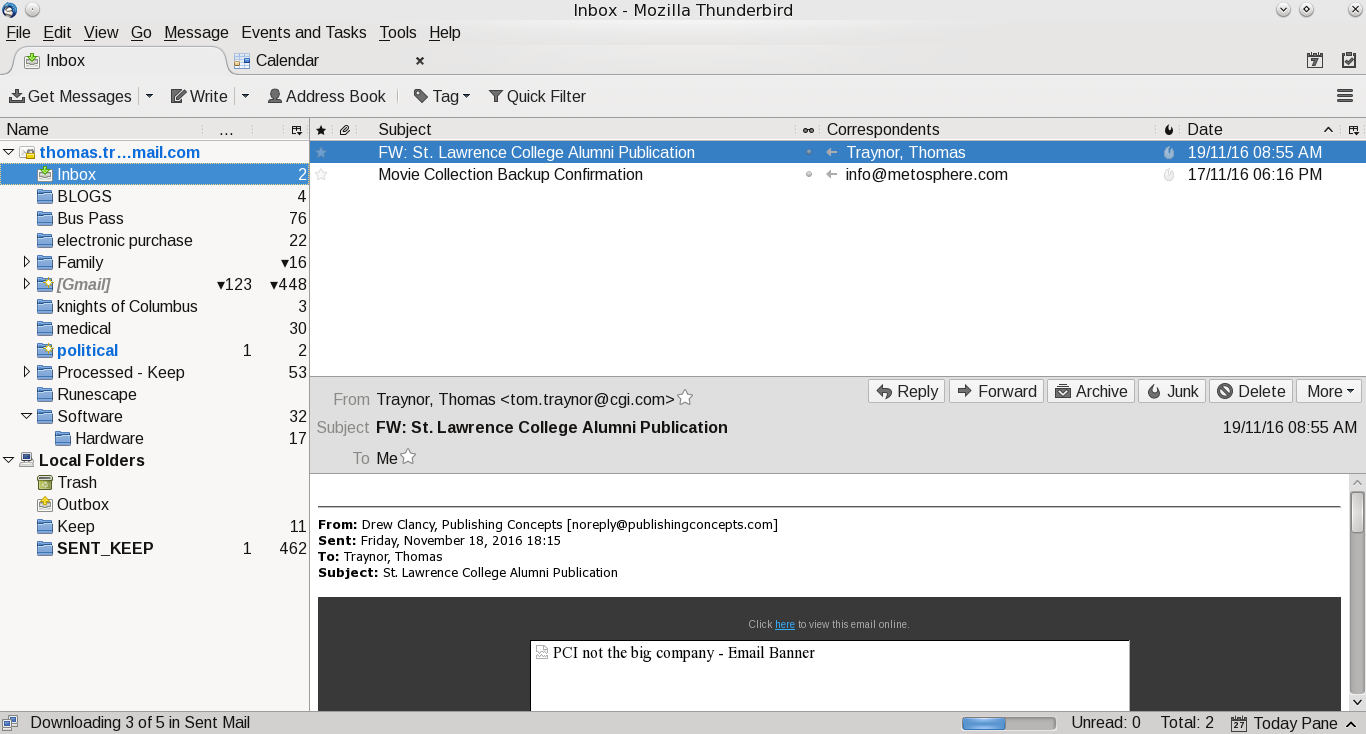
This is the fourth blog on various tools that I use.  Email is a personal preference for what works for you.  Most people I suspect are using Outlook as that is preferred corporate email client and it comes as part of Windows.  My personal preference is actually multiple clients.  My main one is Thunderbird.  It works well in Windows and Linux.  For my Android devices I have two.  GMAIL for Google email (backup client for my Android tablet) and mailbox provided by my ISP.  The last client I use is INBOX from Google.  INBOX is only for my main GMAIL account.  I like this client it as it stays out of my way and allows me to quickly organize and process my mail.

Thunderbird, like Outlook, allows you to create mail rules to categorize (or delete) your email based on rules.  Where I work they use Outlook and I have dozens of rules based on the sender.  The screen prints further in this blog shows the screen, but, at this time my Linux client doesn't have rules as the Windows machine is my main work machine for email (mail from the boss is highest priority and flagged to action immediately, projects go into their own folder).  It doesn't matter what client you use, rules allows you to order your work and focus on what is important.  

In Thunderbird I added an extension to link to my Google Calendar.  I find that handy as I can quickly add/change/delete events when something hits my inbox.  Outlook has that built in and it is a handy option no matter what client you use.

The one thing I never do is open attachments in emails when I don't know the sender.  Even when I know the sender I don't open it up (even in Linux) until I ask if they have sent that file.  My personal preference is to create a folder in my Google Drive, give them access and ask them to upload the file there.  I also have auto-load images in Thunderbird turned off.  Most of the times I don't need to see 'pretty' images and focus just on the text of the message.

The one last client I use is the Google web-mail client.  I like this tool as I can be anywhere and as long as I have access to the internet and a browser I can pick up my mail.

For me I have multiple personal email accounts.
  • My main Google account (linked to this blog);
  • A throwaway account I use for when I am not sure the site will not spam my main Google account.  When it gets too bad I just dump it and create a new throwaway account;
  • A Yahoo account.  This is from many years ago when I didn't have Google mail.  I keep it as it is handy like my throwaway Google account;
  • A Google account for my online gaming.  Some of the sites asks you to register your email account and excluding one game (Runescape) they all use this account;
  • My ISP provides email accounts and I have one set up.  This is for notifications from the ISP and my family usually sends email to this one;

 A few suggestions for your email:

  • If you are using the email from your ISP see if they have spam filters.  If they do, turn them on and use them.  It may not be perfect, but, I find that the one I use is over 99% accurate.  The few times it isn't I flag the email as legitimate and the next time it shows up in my inbox without a problem;
  • If you have an anti-virus and it can integrate with your email client turn it on!  It is another level of defense and I don't see the impact to my client in Windows; 
  • Make use of mail filters.  I use them to categorize my mail and it allows me to focus on what I deem to be important;
  • Guard your email account.  Have a main one for friends and family and only a few others.  For everything else create a throwaway.  If the mail is important you can either forward it to your main email, or, have it as an additional account in your mail client (like Thunderbird does);
Other tools:
  • For those who want to digitally sign your email or encrypt Thunderbird has a support page for this.  At this time I haven't added one; 

Screen Shots of my mail clients

Google Inbox for Android:


My main folder, I like it clean

Google Email for Android:

Main, again clean inbox


Thunderbird:

Mail

Calendar

Extensions

Mail filers

Rules for mail filters


Thursday, November 24, 2016

Software and Tools - Antivirus

The next thing on the list of things to do is a good antivirus package after you install your favourite browser and before you start serious web surfing.  Again, this is a personal preference and it all depends on what you want, need and are willing to pay for.  There are those who say it is all snake oil and useless.  They are welcome to their opinion and in my not so humble opinion it is needed.  It is another level of defense for you that will stop the known nasty software out there.  Why make it easy for hackers to take over your system and use your bandwidth to take down sites, steal your identity?  Will it be 100% effective, maybe not, but if they want to get into my system they will need to work on it and not have an open door.

There are a number of sites that do reviews and I have a list five sites I know.  There are a lot more, but, I don't know them, their methodology and if they got paid to do the reviews. 

For myself I was looking for an package that works in
  • Windows (I still have a machine left running Windows 10)
  • Android for our tablets via the Google Play store.
  • Android phone.  This is a low end model with limited resources.
  • Linux.
I found one common package that works very well in Windows and Android, but, right now my distro does not offer the Linux version of that product.  It does not slow down my machines, especially the low end phone and did catch crap that tried to get installed when someone sent me an email.  Avast works well enough, has a free version that does most of what I want and need.  The version does show ads, but, they are small and unobtrusive for me and don't slow my systems down.  For Linux I am looking at ClamAV as that is available in the distro of Linux I am using.  UBUNTU community has a good small page of various packages you can check out.

The Android screens looks like the following:


The Windows screens looks like the following:


Please remember, just because you are running an antivirus program you can surf wherever you want, click on anything, install anything and open questionable emails.  Nothing is 100% and safe surfing and email practices are required.  Antivirus software just gives you another level of defense.  You also should be keeping your software up to date and making regular backups (a future blog).

Wednesday, November 16, 2016

Software, tools and repositories

This will be a multi-part blog covering:
  • What software I use in Android, Windows and Linux;
    • Social Media
    • Email
    • Anti-virus
    • Cleanup
    • Backup
    • Web
    • Graphics
    • Office
  • Where I go for that software and where do I don't go;
It isn't all inclusive, but, it may give you an idea of where to go, what to do and what NOT to do.

I will start off with where I go for the software.  For Android, Windows and Linux I always go to official repositories or the play stores for the O/S (Android & Windows).  I avoid third party sites as I don't know where they get the software from and just how legit and safe it is.  I know there are good sites, but, I am paranoid on what I install.

Android

Pick your category or do a search

I NEVER use unknown sources.

Windows 10

For O/S I use Update
Check for updates and then install
Windows store, I have a lot of updates
For new stuff you can scroll through it, or search

Linux

Synaptic is how I update Linux

Nothing fancy, no special tools.  I use what is built in to each system.  The one thing I do for all is regular updates.  Windows 10 I don't have a lot of options for the O/S, that is forced on me.  For Android and Linux I pick what to update and when.  For all three I manually review the apps I have installed to see if I really want to install them.  For too many of them they just say 'Speed and stability improvements' and that really pisses me off as I have been a developer for over 34 years and EVERY release I did had a high level description on what was changed and why.  You don't need to get fancy, but, in a few hundred words you can put in enough info to say why we should upgrade.

For Android and Windows I keep my A-V running and up-to-date.  If any package tells me to turn it off as it interferes with the install or update I dump the package ASAP.  If you can't install with the A-V running that sets off red flags for me.  For Android I also review the permissions.  Too many packages asks for rights that they don't need.  I have had games that ask to see my contact list, phone and a few other things I don't think they have the right too and I end up not installing.

For all software I don't mind if it is ad-supported, I understand you need to make money, but, please don't show the full screen ads or show ads every few minutes forcing me to watch before I can continue.  Each app that does that gets nuked from orbit as there are other apps that I can use and don't spam me.  As an example, last week I removed an Android app.  It was opening a lot (over 12) Firefox tabs and going to a group of sites with a common high level URL.  I don't know if it was mal-adware, or, they got greedy and tried to max out advertising revenue, but, it got nuked from orbit and I will install a similar app (local weather FYI).  Before that happened they had a nice ad running along the bottom and was well behaved.  Upside is AVAST didn't find a virus so I think I dodged a bullet there.


For Windows not all apps are in the windows store.  For those I go direct to the software developers and download from there.  I don't go to many aggregators as I had a bad experience with one (CNET I am looking at you for that) and it messed up my Windows 7 systems so badly with spyware I had to rebuild TWO laptops from their original install CDs.  I am fairly proficient when it comes to operating systems, tools and such, but, it was telling me I didn't have the admin rights to remove it and when I did get tools to remove it there were so many hooks elsewhere that it re-installed itself.  If you go to a third party for software, be careful, be VERY careful as even an experienced user got burned badly.  This is why I tell everyone not to use third party software sites.

Saturday, August 27, 2016

Microsoft - Did you really test the latest release?

I have one and only one Windows based machine and everything else is Linux.  When Microsoft offered the update to Windows 10 I did the upgrade.  I wasn't worried as I could revert back to 8.1 and my work machine is Linux so if things gets messed up I still have a computer.  When I did the upgrade from Win 8.1 to Win 10 I lost the ability to use the scanner.  The scanner was only a couple of years old, but, the manufacturer didn't have a driver and the manufacturer isn't making a driver for that model in Win 10.  That wasn't a problem as my Linux machine could use the scanner so I didn't have to go out and buy a new supported scanner.

The big thing that pisses me off right now is the anniversary update to Windows 10.  I don't know what they tested, how they tested or even if they tested.  The machine right now is so unstable at times it is almost unusable.  Part of the time it will 'hang' and then I get a black screen or blue screen and have to do a hard reboot.  Most days I want to use the machine I end up rebooting 2 to 3 times before it runs.  This isn't an old machine, this is a fairly new and HIGH end Dell laptop that I use for one of the online games.  I also use it for storing all of my digital images and videos (1 Tb drive).  I also use it for photo editing and video editing and before the update it was rock solid and fast.  Now when it does work it takes minutes to boot, slow for the first several minutes and takes over 2 minutes to shut down.

I patched everything for drivers to the most current and it still locks up on a regular basis.  What I want to know is how does Microsoft test their software as I am not the only person having this problem and there isn't one common fix for everyone.  This suggests to me that there is something in a Microsoft software component that is causing the problem and we don't have the ability to be able to see what it is and disable that piece (if possible).

Upside right now is I have a backup of all of my images, videos and documents so that is safe.  Microsoft says they are looking into it and may have a fix, but, this is why I am using Linux.  When there is a major issue I can quickly roll back to the prior kernel or package and continue on with my work.

Saturday, May 14, 2016

Adding Google Drive to my Linux Box

GRIVE Installation and scripting

I have been digging around to see if there is a Google Drive service available for my Linux box.  I preferred to have something like what I have on the high end laptop (windows 10) in that it looks like a drive and I can manipulate the files in any way I want and updates GDRIVE immediately.  So far there is nothing like that in LINUX, but, there is a package called GRIVE.  I read up the documentation on the package and saw that it was something that I could use for now.  I installed the package, followed the instructions to link the app to my GMAIL account and then did a synchronize.  The first run took several minutes while it downloaded all of the files and folders, but, when I run again the synchronize took only a few seconds.  While this isn't perfect it does allow me to access my GDRIVE files, make updates and then sync the changes.

I always like to automate my tasks if I have to run it more than once.  For jobs scheduled on a regular basis I prefer CRONTAB, for things not on a regular schedule I prefer a folder with scripts or links to do the job.  For GRIVE I wrote two very simple BASH scripts to automate my synchronizing my GDRIVE files.  The first one displays to the user what will be done and give them the option to continue or quit.  The second calls the first from an XTERM window where I set up the font to a readable size.  I dropped a link to the second script to my desktop and ran it.  The script is very simple, possibly over-kill, but, I like to automate things so one click does the work for me.  I ran the script this morning as I had two new images (for this blog entry) and it synchronized my files in several seconds.  There is a lot more to the script that what you see, but, it is just setting up the color variables and getting the system time.  I don't need to use the time yet, but, it is part of my normal BASH skeleton script.

Screen shots

BASH script to sync to Google Drive using GRIVE

What the BASH script presents to me when run

Full BASH script to run GRIVE

#! /bin/sh
# ANSI Colors
#
#  Version:
#    - Version 1.0.0 2016/05/15
#    - Copyright 2016 Thomas Traynor.
#    - Program is distributed under the terms of the GNU General Public License
#    - http://www.gnu.org/licenses/gpl.txt       
#    - Release Notes:
#
#
#  Notes:
#
# ------------------------------------------------------------


zSetANSI() {

# Foreground colors:
    uFGBK="\033[30m";   #Black
    uFGLRD="\033[31m";  #Low  Red
    uFGHRD="\033[91m";  #High Red
    uFGLGR="\033[32m";  #Low  Green
    uFGHGR="\033[92m";  #High Green
    uFGLYW="\033[33m";  #Low  Yellow
    uFGHYW="\033[93m";  #High Yellow
    uFGLBU="\033[34m";  #Low  Blue
    uFGHBU="\033[94m";  #High Blue
    uFGLMG="\033[35m";  #Low  Magenta
    uFGHMG="\033[95m";  #High Magenta
    uFGLCY="\033[36m";  #Low  Cyan
    uFGHCY="\033[96m";  #High Cyan
    uFGHGY="\033[37m";  #High Gray
    uFGLGY="\033[90m";  #Low  Gray
    uFGWT="\033[97m";   #White

# Background colors:  
    uBGBK="\033[40m";   #Black
    uBGLRD="\033[41m";  #Low  Red
    uBGHRD="\033[101m"; #High Red
    uBGLGR="\033[42m";  #Low  Green
    uBGHGR="\033[102m"; #High Green
    uBGLYW="\033[43m";  #Low  Yellow
    uBGHYW="\033[103m"; #High Yellow
    uBGLBU="\033[44m";  #Low  Blue
    uBGHBU="\033[104m"; #High Blue
    uBGLMG="\033[45m";  #Low  Magenta
    uBGHMG="\033[105m"; #High Magenta
    uBGLCY="\033[46m";  #Low  Cyan
    uBGHCY="\033[106m"; #High Cyan
    uBGLGY="\033[47m";  #Low  Gray
    uBGHGY="\033[107m"; #High Gray

# Underline:
    uFGULINE="\033[4m";
  
# Blink:
    uFGBLINK="\033[5m";
  
# Reset all:  
    uFGRESET="\033[0m"
}


#
#  Get the system clock and set to a variable.
#

zGetDATE() {

# System date.  For all date options type date --h on command line.

    uSYSYY=$(date +%Y);
    uSYSMM=$(date +%m);
    uSYSDY=$(date +%d);
    uSYSDT=$uSYSYY$uSYSMM$uSYSDY;
  
    uSYSHH=$(date +%H);
    uSYSMIN=$(date +%M);
    uSYSSEC=$(date +%S);
    uSYSTM=$uSYSHH$uSYSMIN$uSYSSEC;
  
    uSYSJDT=$(date +%j);
    uSYSWK=$(date +%W);
    uSYSDOW=$(date +%w);
    uSYSDAY=$(date +%A)  
    uSYSMTH=$(date +%B)
}

# ============================================================
# END OF ALL SUBROUTINES FOR THIS SCRIPT.
# ============================================================

zSetANSI;
zGetDATE;

# Define the working variable for return codes:
uRC=0;

# Get current directory name
uDir=$( cd "$( dirname "$0" )" && pwd);

#"

# Get process ID
uProcID=$$


#  Now echo out the stuff to the console:

clear;
echo ;
echo -e "${uFGHRD}Syncronize with Google Drive${uFGRESET}";
echo ;

cd ~/GoogleDrive

echo -e "${uFGLGR}This could take a while syncronizing the files."
echo -e "If you want to continue press ${uBGLGR}${uFGBLINK}${uFGBK}[ENTER]${uFGRESET}"
echo -e "${uFGLGR}otherwise ${uBGLGR}${uFGBLINK}${uFGBK}[CTRL-C]${uFGRESET}${uFGLGR}."
echo -e "${UFGRESET}"
read uLINE
grive

echo ;
echo -e "${uFGHRD}Syncronize Finished${uFGRESET}";
echo -e "${uFGLGR}press ${uBGLGR}${uFGBLINK}${uFGBK}[ENTER]${uFGRESET}${uFGLGR} to finish update"
read uLINE

Wednesday, May 04, 2016

A new midrange laptop for me and what I use for specific jobs

Some people may think that three laptops that I have are too many, but, I don't.  I have machines for specific tasks.  The netbook is an old machine that I bought years ago on sale and the HP is a refurbished model.  The Dell machine is the only new laptop and I bought it specifically for gaming and to store a lot of digital images.
 

Netbook:

I have the netbook set up with LUBUNTU.  That is great distro for a five year old netbook with 2 gigs of memory.  It allows me access to web mail, Facebook, Twitter and a few other things when I travel and it is very light and the battery lasts about 4-6 hours depending on what I am doing which is great when traveling.  If I am doing light digital editing it isn't to bad, a bit slow, but usable. 

HP Laptop

I picked up a nice mid-range laptop for my every day work at home.  It is a HP EliteBook 8440P.  Eight gigs of memory and one hundred and twenty-eight gig SSD.  I originally had LUBUNTU, but, something in how I did and configured caused the screen to go 'nuts' at times.  I put on PCLINUXOS and it has been rock solid.  This machine is my daily machine rather than my high end gaming system.  It allows ready access to social media (Facebook and Twitter), email and light gaming.  It also is used for digital editing and other daily work.

PCLINUXOS installed a lot of software I don't need and it was easy to remove them. I like the distro and I used it years ago and I see it has gotten better over time.  The desktop is KDE and it is close enough to Windows that anyone accustomed to Windows (up to 7) will be at home using it.  It is light enough on system resources that it is snappier than windows.  As an example this laptop launches in about thirty seconds (including the time for my to type in my password) and shuts down in about five seconds.  My gaming system takes about a minute to launch and about two minutes to shut down.

I am now playing Old School Runescape on the machine and it is as fast in a browser as when I am using my gaming system with the Runescape client software.

Todo

  • I transferred my various Bash scripts from the netbook here, but, I had to make minor tweaks due to the difference in terminals and the options used to compile Bash.  My next mini-project will be to look at the scripts and figure out how to rewrite them so that run on both systems without changes.
  • Set up and configure the Brother network printer.
  • Set up and configure the old scanner to work on this machine.
  • Install and configure additional software to play DVD movies.

Dell Gaming system

My high end machine is a Dell.  Right now it is running Windows 10.  I use this for heavy duty gaming and software that runs only on windows (income tax).  This machine has eight gigs of memory and a one terabyte drive.  This is my main machine for all of my digital photos and scanned documents.  Anything I do on the HP for digital images gets transferred here and once a month the files are backed up to an external one terabyte drive.

Saturday, March 19, 2016

Why do I use ad blockers?

In this blog I will try to explain why I am using ad blocking software.  To quickly summarize use ad blocking software for four simple reasons.
  1. I have a bandwidth limit and when I exceed it I pay for every byte sent/received.
  2. A number of devices I use are older and slower and most ads will bring them to a complete stop.
  3. Ads have now been used to target us with malware.
  4. Cookies and other tools are being used to peel back what little privacy we have on-line to track us everywhere and try to target us with 'relevant' ads based on where we go.

For a number of years I have been using ad block software.  Publishers for years also have been complaining that we are stealing.  Frankly that is BULLSHIT, publishers you have been hogging my bandwidth that I pay for when you spew ads at me and try to track every move I make on-line.  I monitored a few sites and 80% of what is sent to me are scripts and images for ads and tracking companies!  That is just the scripts, I wasn't even counting the images and flash pages they were sending.  Since I am the one paying for the bandwidth I want to make sure I get what I pay for.  For the good sites with ads that are tasteful, unobtrusive and doesn't suck up every spare CPU cycle I white-list and allow the ads.  The rest I give them a try now and then and if I find them to be resource hogs I black-list again.

Some will say it isn't that bad, well in my not so humble opinion it is.  I have a number of devices and for all of them I must use ad blocking software or when I go to a site in the browser a number of my devices will stop for minutes at a time while it is trying to render that page and serve ads.  The three devices where I must use ad blocking or they are almost unusable are:
  1.  Huawei cell phone.  I use this now and then when i am out shopping.  While resting I may surf Twitter, Facebook and email if the mall has free WI-FI.  Now and then something may catch my eye on-line and I click the link to see more about it. Without ad blockers the browser will take minutes to render a page (looking at you CNN, ABC, CTV and CBC).  At times I just close the window due the scripts running if I don't use ad blockers.
  2. Google Nexus 7 tablet.  This is now retired, but, I used it in a similar manner to my cell phone when traveling.  At home it was my main tool for using Twitter, Facebook, blogging and email.  Like the phone I am forced to use ad blockers or even that machine will slow down to a near stop.
  3. Acer Aspire Net-book.  This is a more robust machine, albeit a low end laptop.  I upgraded the system to 2 gigs of memory, but, everything else is stock.  Before I moved to Linux I was running Windows 7 then Windows 10.  Like the two  devices before I do run ad blockers.  It isn't as bad as those devices, but, it would take up to a minute for some sites to render a page and I watched the CPU usage hit 100% (I like using GKRELLM to see what my system is doing).  I also modified my HOSTS file to kill a lot of ads and trackers.  
I have two more devices that are more modern and higher powered and even there I use ad blockers as even they have problems at times rendering pages with ads.
  1. Samsung Galaxy Tab A.  An android device and works quite well.  Samsung's site is also up-front on their use of cookies!  The browser has an ad blocker.  I can't modify the HOST file as I have not rooted the device.
  2. Dell Inspiron 15 7000 Series.  A high end laptop with Windows 10.  Even here I have to use a HOST file and ad blockers as some sites are so bloated they take up to 30 seconds to render.
Now I can hear web sites saying we need the ad revenue to stay in business.  Some have even gone as far as to run scripts to scan for ad blockers and then block their site until we turn off our blockers.  For those companies who actively block me when I run ad blockers I just go elsewhere and a good site gets my 'business' and you get absolutely $0.00 in ads from my visit.
  1. When you use third party ad companies to present ads on your behalf you are trusting them to ensure their sites show us legit ads.  Well check out the links here and here for malware issues.  Why should I open up my machine to malware served by YOU?  You can claim that it is the ad company, but, you picked them, you trusted them, you are taking their money for presenting those ads and in my not so humble opinion the buck stops at your desk!
  2. Your advertising partners are doing their best to track everything I read and where I go in order to 'serve' me more 'relevant' ads.  Relevant in whose opinion?  When I read an article on diabetes does not mean I want to get flooded with targeted ads on blood meters and related items.
  3. I do unblock the good sites.  I understand their need to make money and the ads they serve are good and don't hog my bandwidth or system.  They also respect my privacy and try their best not to track my behavior.
The latest beef I have about ad blockers is that some of them are now white-listing sites and taking the choice out of my hands for what sites can present me ads.  Well that cost them a loyal user as I dropped them from EVERY browser in EVERY device in my house.  When it comes to ads and sites I am the final arbiter and no one else!

For users I have a few things for you to think about.
  1. If you are technically inclined check out using a HOST file.  You can then pick the more annoying sites to block. 
  2. Virus scanner software.  There are a lot of good ones and many are fairly inexpensive.  Personally I use AVAST as it is cross platform (Windows, Mac and Android), inexpensive, doesn't hog system resources and it just works.  
  3. An up-to-date Browser.  This is important and the latest versions have bug fixes to minimize exploits.
  4. Ad blocking software that allows you to white-list sites.  You can then tailor your blocking and allow sites that respects you to be able to serve ads and allow them to stay in business.  For me I like UBlock origin and Flashblock.  They work in Windows, Android and Linux for my Firefox browser.

An example white-list from UBlock origin (hmmm, seems like there is only one site there, probably because I don't want to advertise who I white-list).
White-list options, Slashdot is one of the GOOD sites I allow ads.  I hid the others.

Thursday, March 17, 2016

Netbook is now Linux

The run with Win10 on the netbook is over.  It was fine, but, I get nervous seeing how many pieces of the system call home for stuff I can't control or turn off.  That and I want to be in control on what gets upgraded and not have it forced on me.  I have been using Linux for years on a variety of machines and it was easy to convert this machine.

The conversion took only an hour and I was up-and-running.  The distro I am using is LUBUNTU and it is quite light on the machine.  I had to make a few changes.  The default word processor and spreadsheet were replaced with LibreOffice.  I prefer it as my Windows laptop runs it and it is easier to work with when I have only one app to keep up-to-date.  Same with GIMP for both machines.  I did remove light-locker and replace it with xscreensaver.  For the system monitor I put on GKRELLM.  To make things work I had to modify the startup via LXSession configuration.  One other quirk was that the touchpad would always start every time I log in and not respect my settings.  That was easy to fix on the start in LXSession.  To do screen captures I had to install Gnome Screenshot as the screen shot key doesn't seem to work.  All of the software is in the Synaptic Package Manager.

Modify startup for my preferences

The best part is it takes about one minute to start up the machine and about 10 seconds to do a complete shutdown.  Windows startup was around 2 minutes and at least a minute for shutdown.

Current screen looks like the image below.

My main screen setup
 Once I got the basics set up I then launched the software updater facility.  It downloaded everything, installed, cleaned up, rebooted and I got the latest version of LUBUNTU.

The only package so far I couldn't find was the driver for my Brother print/scanner.  Upside is that Brother does support Linux and I could download and install the files.  Once there I configured my printer without too much effort.  I had to use the IP address, but, once filled in the printer worked without issue.  The next thing I have to check out is the scanner option.  I also have an Epson Scanner that I want to see if it works on the machine too.  Windows 10 would not support it and I was thinking of buying a new scanner, but, if the netbook recognizes it I can save money by not purchasing a new scanner.

Brother printer/scanner recognized


Tuesday, March 01, 2016

Windows 10 & Drivers - What a pain

Last week I wanted to use my scanner to make a copy of my various medical receipts.  The Epson Perfection 1650 worked well in Windows 7, minor tweaks in 8.1.  In Windows 10 it doesn't work at all.  It sees the scanner, but, does not recognize the driver.  This is a major annoyance as this is a fairly recent scanner.  I checked Epson and they don't support it.  The options are to move it to the laptop with Linux (wife's machine so I have to wait until she isn't using it) or buy a new scanner.

I checked a number of stores and most don't stock stand-alone scanners as they prefer multi-function machines.  I understand their reason as they get return business for replacement ink cartridges.  The problem is that I have 2 printers.  One is a color ink-jet and the other is a laser so I don't need a third printer.

Why do manufacturers abandon hardware when a new O/S comes out?  i know it costs a bit of money, but, if you design the driver properly it should be moderately easy to port.  If not why don't they open up the specs so hobbiests have an easier time of writing drivers?

Tuesday, January 12, 2016

Main machine upgraded to windows 10

After a few months of waiting and waiting for the bugs to show up & get fixed I finally upgraded my Dell laptop from Win8.1 to Win10.  Since Windows 8.0 is not being supported the writing is on the wall for Windows 8.1.  I figure this is a good time as the 'free' upgrade is still available and the initial bugs should have had a chance to get fixed.

Before I did the upgrade I did a full backup of every file I had on the laptop just-in-case.  The upgrade itself took about an hour and it looks good so far.  The upgrade preserved my settings, but, there are still a few tweaks to go for privacy.

One of the first things I did was to make Cortana an icon on my desktop bar at the bottom, I just don't want it hogging valuable real estate.  The second was to make Firefox the default browser as I never use IE (now Edge).  My anti-virus (Avast) still runs without issue and no glitches so far.

Over the next few days I will be stress testing the upgrade by playing my favorite on-line game (Old school Runescape), my office suite (LibreOffice), email (Thunderbird) and graphics (GIMP & Irfanview), scanner (older model Epson) and lastly my printers (wired laser & wi-fi inkjet).


Update 2016/02/13

True color doesn't work properly.  It is Windows 8.1 only.  First step is to turn autostart off, then true color off.  If you don't do it that way it can't be turned off at start-up.

Sunday, December 13, 2015

More Windows 10 annoyances

I have been putting off the Windows 10 upgrade on my main laptop and now Microsoft is getting more annoying.  I would like to turn off the 'notice', but, I haven't see any option.  More annoying is they pop up their notice over top of whatever I am working in.  I was lucky in that I wasn't doing anything dangerous in the online game, but, this is something that should not be done for advertising an upgrade.


Saturday, November 21, 2015

Latest Win10 update and annoyances

The latest Windows 10 update was installed on the netbook without an issue.  It is a older and slower Netbook and the update took about four hours.  For modern and faster machines it should install in a fraction of the time.  Once it was done and I rebooted it ran without a problem.  Again, I don't notice any slowdown on the machine and what I normally use still works.

The annoyance is on my Windows 8.1 laptop.  Microsoft keeps 'nagging' me to update, but, right now I don't think I want to.  I don't like the idea that they force upgrades/updates and I have no choice.  The other things is it keeps 'phoning home' on things and I don't have a chance there.  The last annoyance is in Windows update as Microsoft keeps checking the upgrade when I don't want to upgrade.  Not a major problem, I just uncheck it.


Saturday, August 08, 2015

My Windows 10 upgrade experience

Pre-Installation


It finally happened, Windows had a notice on my netbook that the Win10 upgrade was ready.  First thing I did was to make sure I had a backup of my data just in case.  I wanted to do my netbook first as it is an older, slower machine and if the upgrade worked well on that machine it should work well on my high end laptop.

The machine is an Acer Aspire One D255E.
  • CPU - Intel Atom N455 - 1.66 GHz
  • Memory - 2 Gigs (I upgraded from 1 Gig last month)
  • Storage - 160 gigs


Installation

The process itself was very painless.  Be prepared to spend at least three hours for the upgrade.

Download, Configuration and Installation

Once you click the start it is almost hands off.  All you need is patience.  For the most part it does a good job of telling you what it is doing.  Towards the end it even informed me that it was taking a bit longer than normal which in itself is a nice touch from Microsoft.

The following screen captures is what you should see during the installation up to the point of your customizing the setup.


Custom Install process

Once you get through all of this you can start the final process.  I strongly suggest you pick the custom option.  This way you can turn off the sharing of information and ensure your default browser stays as the default.

Your old password is used


I am not sharing everything with MS

More things I turned off

Here is where you can modify default apps

I turned off a number of apps as I have my own

I like this, they know it is a bit slow & lets you know

When done it brings you to what you are familiar with

I tested out Old School Runescape


It actually seems to run better in Win10


There are other things I will be doing, but, there are online articles explaining this better that I can.  Do a search on 'How To Stop Windows 10 from using your PC bandwith' on how to turn off your sharing your bandwidth for downloading Win10 upgrade.

This blog was written on the Win10 netbook in Firefox and so far I have not encountered any problems.  Avast worked without issue, Irfanview worked without an issue and Runescape runs without a problem.

Update 2015/08/16

So far it has been running very well.  Did an update and it worked well and asked to reboot when finished.  Browser updated without issue and playing OSRS is nice and no lagg there.