Showing posts with label Andoid. Show all posts

Sunday, May 06, 2018

Looking for a new VPN for my various devices

For some time I have been making use of the Opera VPN software for my Android tablet and phone.  I liked it as it 'just worked' and didn't have a major impact on either device for performance.  However, it has been discontinued and I am now looking for a new VPN for my devices.

I don't use VPN very often, just when I am out and I need to quickly check my mail or do a quick web search.  The various malls I do go to have 'free' WIFI, but, I don't want them to harvest my information and I DON'T want anyone see my passwords for mail, web sites I log on to.  I prefer what I do and where I go is my business and no one else.

What am I looking for in a VPN:

  • Minimal impact on my Android devices.  I don't want something that is a battery hog or uses so much CPU that the machine isn't responsive.
  • Preferably open source.
  • Minimal cost.  Free would be nice as long as the ads are not obtrusive.
  • They don't record much information, preferably nothing about my connection.
  • Reasonable privacy policy.  Too many companies ask you to sign away absolutely everything in the quest to protect themselves no matter how badly they screw things up for you.  They also seem to want all of your information and be able to sell it to anyone.
  • It would be nice that there are Linux and Windows versions.  My netbook and notebook are Linux (I do have openvpn there) and while I don't travel with them often it would be nice to have a good VPN for them that is the same as my Android devices.  My one Windows box never travels with me, but, just in case it would also be nice to have the same VPN running on it.  I prefer just one package so that I know that I get consistent protection and not have to learn multiple packages.
I am not going to rush into getting a new VPN, but, I will take the time to search for my replacement as this isn't a high priority item.  So far a few sites that I will be reading and starting my search with are:

The above sites are only my starting point that I will be using.  Once I pick a few packages I will be downloading them and seeing how they run and the impact on my devices.

Update 2018/06/09:

I installed windscribe as it appears to be free, has a fair limit per month.  I don't need the fastest or most data as I only need it a few times a month.  It works well enough on the tablet and I couldn't tell it was running.

Sunday, July 16, 2017

A mini-rant on the state of store web pages

Too many stores don't take time to build a web site that is user friendly.  They are probably going with the experts who say it is perfect, but, take it from me they are far from perfect.  There are a few that I have problems with and it is frustrating in the least when I am looking for products.

I check out the online sites to see what products are available, their specs, reviews and prices.  When I see something I am wanting to buy I prefer going to the store to check it out the product before I purchase.

A few not-so-humble suggestions for your online sites:
  • Allow us to pick online only.  Many people do order online, but, for those of us who want to be able to go into the store and check out the product so we can make the final decision before buying give us the option of seeing only what is in the store.
  • Same goes for your affiliates.  Again, if I am interested I will click on the box to show them.
  • If the product is not available allow us select a check box so as NOT TO SEE them.  If they are not available, or sold out, then I don't want to see it.  This is the equivalent of empty shelves in the store.  If it isn't there then I am not interested in seeing a pretty picture. If not available, give an option quickly inform us how long it would take for it to be stocked locally.
  • This is a biggie and too many sites do this.  Check boxes are only that, you click on them and there is a check mark or it is empty.  Clicking on it WILL NEVER initiate an update, that is completely against what click boxes are for.  Allow the user to select what they want to see and then have a 'REFRESH SELECTION' button to present the user what they want to see (example below).
  • When I tell you NO on my location respect it! There is a site that every page I go to it asks me for my location and I keep telling it no.  The same goes for asking for my postal code and not allowing me to see anything until I do.  When I want to tell you my location (to see if stock is available locally) I will tell you and not until then.
  • Keep the scripting and fancy images to a minimum.  Not everyone runs the latest hardware that can handle all of the scripting quickly.  I have a high end machine for development work and pages there renders quickly, however, I have a netbook that I also use for development work and the same page sometimes takes up to a minute to render and that is not acceptable.
  • Test your pages for IE, Edge, Chrome and Firefox.  Too often I have to open up another browser so that your pages will properly render.  Again, follow the W3C standards for your pages and thoroughly test your pages.

For those thinking these are small business the answer to that is no.  These are large multi-national corporations who I would expect to be able to afford great web developers with the skills and knowledge to build sites that make it easy for customers to quickly find what they are looking for, confirm that the product is available locally. 

Check out the W3C site for web standards and how to develop a website that should work cross platform and with different browsers. 

It has been a while since I coded web pages, but, if I remember correctly you can use the following as an example of how to do check boxes.  Change the { and } to < and >.  I changed the values so that you can see the code and not the form.

{form}
{div}
   {input type="checkbox" id="In Store" name="instore" value="itisinstore"}
   {label for="In Store"}Show product that is in store?{/label}
   {input type="checkbox" id="Online Store" name="onlinestore" value="itisinonlinestore"}
   {label for="Online Store"}Show product that are in the online only store?{/label}
   {input type="checkbox" id="Out of Stock" name="outofstock" value="outofstock"}
   {label for="Out of Stock"}Show product that are temporarily out of stock?{/label}
{/div}
{div}
   {button type="submit"}Refresh your selection{/button}
{/div}
{/form}

Monday, December 26, 2016

Software and Tools - Social


A large part of people being online is the various 'social' applications.  For myself the major ones I use is Twitter and Facebook.  There are others, but, the basics I will cover here should be applicable to the other sites/applications.  I use Twitter mainly to quickly comment and notify about various events and information that I find of use.  I have the account linked to my Facebook so that my friends and family can get the information at the same time.  I like Twitter as it is small enough for my low end smart phone to run without a problem.  Facebook to be blunt, is a pig on resources and when I did have it running on my phone it would take 5-10 seconds at times to do a simple action like posting an update.  Facebook runs well on my tablet and my laptop and that is the main way I socialize electronically with friends and family.  I use both to supplement my contacting friends and family and it does not replace face-2-face.  I like them both as I can quickly set up photo albums of events and quickly share them for those who could not make it to the event.

One of the first things you should do when joining is to read the terms and service.  I know they are extremely long, boring and full of legalese, but, you should be aware of the basics just-in-case there is a problem in the future.

Settings

Next up is to check the settings, especially the privacy settings to make sure you share only what you are comfortable with and turn off the rest.
Facebook Android Client Settings

Facebook Android Client Privacy Settings

Twitter Android Client Settings


Twitter Windows 10 Client Settings
Facebook Windows 10 Client Settings

As you can see above the applications have a similar look-and-feel and the web browser rendering looks very similar.  Take 15-30 minutes and navigate through the various settings and read up on what they do and then set your account to what you want people to know about you and the marketing firms gets to see.

Once you are set up then you can think about what to post.  What ever you post always assume that your employer can see all your postings so exercise some prudence on what you post!  You may have your account locked down so that only friends and family can see what you put up, but, if they re-post or share and they don't exercise good judgement on their privacy settings they can expose what you put up.  I have seen people put up photos of events that to put it kindly was less than a positive image they wanted to project socially and professionally.  When in doubt ask yourself - what would mom think if she sees it?

Security

On the security side of things be careful on what links you click, especially in Facebook.  I have noticed a large increase in what is claimed to be news (or at least what people want to you think is news), but, is at best clickbait or trolling and at worst a link to sites that may contain scripts that can infect your machine.  Best thing I can say is to exercise caution with links to news.  If the articles come from friends and family still exercise caution, but, if it is a promoted article then be very suspicious.  Most of the clickbait sites are there to make money by showing you a lot of ads and the content at best is misleading.  For the fake news sites they tend to show to people articles written in a way to inflame them (or troll them).  Personally when I get unsolicited 'ads' I click the drop down and pick the option telling Twitter/Facebook that they are not interesting.  Before I re-post a tweet or a Facebook news story I check out the article and review it.  If it is clickbait, inflammatory or misleading I just ignore it and not give them additional views by re-posting.

When I am done with my session in Twitter and/or Facebook I log out of the account.  It is a bit of a pain, but, if for some reason some gets access to my phone, tablet of PC they don't get easy access to my accounts.  When I leave the machine I also lock it!  It takes only a few seconds to unlock the machine and then log back in, but, if someone gets access to that device they can destroy my account and credibility in a few seconds.

Another thing I strongly recommend is a good anti-virus package.  It may not stop 100% of the nasty virus/Trojans out there, but, it is another layer of defense to make it harder to get access to your device.  You can read my short blog on this topic to give you an idea of what is out there.

Adding friends/family/businesses

One of the other things I am very careful of is adding people to Twitter or Facebook when I get a request.  It does not matter who it is doing the request!  All friends/family get vetted as to who they are before I add them.  I have received requests from people claiming to be a friend or family, but, when I check with the person directly I find out they didn't make the request.  When that happens I have the friend or family member report it to Twitter or Facebook and I do the same.  On Twitter I regularly get requests to add people and I  review them very carefully before I add them.  For a while the requests were from very questionable accounts and the content and images were not the type I wanted associated with my account.  In the past several months I think Twitter has gotten better nuking the accounts quickly as it is a very rare event when I get such a questionable request.  Every couple of weeks I review who I have linked to and those who link to me and verify that the accounts are still legit and the content is what I want associated with me.  I have found that some Twitter accounts looks legit for a month or two and then the true nature shows itself.

Images

On uploading images I try to be careful of what is uploaded, especially when someone tells me they don't want a particular photo posted.  I also resize the image to around 1024x768 or 2048x1536.  Not everyone has high speed internet and at those resolutions the image is still good enough and is small enough for them to download quickly.  I keep the originals on my machine so if they want the original image I can send them that when requested.

Backups:

Twitter does have the ability to backup your posts.  The link on how to do that is here.  Facebook has a similar facility and the link on how to do that is here.  I strongly recommend that you do this now and then.  If for any reason you lose access to your account you have a backup.  When you backup your accounts you may also want to think about how to backup your phone/tablet/PC at the same time.  Machines do fail and I remember a person calling me to see if I restore their hard drive.  They had thousands of images and a lot of the pictures of their children when they were small was on the failed drive and they had NO backups.  I couldn't restore a lot of images, but, I could restore several thousand images.  They now have an external USB drive they backup their files to on a semi-regular basis now.  External USB hard drives are fairly inexpensive and capacities are in the multi-terabyte range now. 

Saturday, December 03, 2016

Software and Tools - Office suite

This is the fifth blog on software.  This time I am focusing on 'office' suite software that I am using on my Linux machine.  The Office suite you use is a personal preference, or, it is imposed on you by the company you work for.  My personal preference is the Libre Office suite.  It is free, works very well in Linux for what I need it for and so far it handles all of my files from the office when I have to make changes and I don't have access to my work laptop.  My company supplied laptop has the Microsoft Office Suite as that is the corporate standard.

Android devices

The Android phone uses only the Google docs tools installed by default due to it being a low end phone, but, that is fine for me and what I need it for.  The Android tablet also uses the Google docs tools as I don't need or use a lot of high end functions.  The times I use the Google docs tools is when I need to make a quick edit to a document or spreadsheet I have on Google Drive.

Linux

This is where I do most of my serious work when doing documents.  I am not going to go into how each package works, just a quick intro to the two main tools I use and what it looks like.  So far I have not had any problems using documents from work in the suite.  It does look a bit different when rendering the documents, but, the basics are there and I can quickly do what I have to do and get it back to work.

Libre Office came pre-installed for me so that was a bonus.  If it isn't, you can use your package manager to install the software.  The main functions are Writer, Calc, Base, Draw, Impress and Math.  I normally use Writer and Calc and I have only used Impress once. 
Office suite menu

If you launch Libre Office the package will present you a number of options and the last set of files you were working on.  From there you can pick the file you were working on, open a file or create a new file.  Clean and simple screen that allows you to quickly do what you want to do.
Libre Office, what do you want to do
An alternative is when you are working in a document is to click on the file button at the top and then select new.  It will show you a list of items you can create.  The program presents you a short and simple list of things you can do.
What type of document to create
The look and feel of the suite is very similar and is similar to the Office suite in a way.  If you are not sure what to do you can hover the mouse over the icons at the top and a quick description is shown.  I have not modified what this looks like as right now the default works very well for me.
Writer blank document screen

Other office tools

At this time I don't use much else.  The only other two tools is a character select KCharSelect that came as part of KDE and a PDF viewer Okular.  I use Okular when I export out a spreadsheet from Calc for viewing on the phone.  I do this so that I can quickly see my DVD library on the phone to see if I have already bought that video and not having to open up the spreadsheet and accidentally make a change.
KCharSelect

Okular

Monday, November 28, 2016

Software and Tools - Email

This is the fourth blog on various tools that I use.  Email is a personal preference for what works for you.  Most people I suspect are using Outlook as that is preferred corporate email client and it comes as part of Windows.  My personal preference is actually multiple clients.  My main one is Thunderbird.  It works well in Windows and Linux.  For my Android devices I have two.  GMAIL for Google email (backup client for my Android tablet) and mailbox provided by my ISP.  The last client I use is INBOX from Google.  INBOX is only for my main GMAIL account.  I like this client it as it stays out of my way and allows me to quickly organize and process my mail.

Thunderbird, like Outlook, allows you to create mail rules to categorize (or delete) your email based on rules.  Where I work they use Outlook and I have dozens of rules based on the sender.  The screen prints further in this blog shows the screen, but, at this time my Linux client doesn't have rules as the Windows machine is my main work machine for email (mail from the boss is highest priority and flagged to action immediately, projects go into their own folder).  It doesn't matter what client you use, rules allows you to order your work and focus on what is important.  

In Thunderbird I added an extension to link to my Google Calendar.  I find that handy as I can quickly add/change/delete events when something hits my inbox.  Outlook has that built in and it is a handy option no matter what client you use.

The one thing I never do is open attachments in emails when I don't know the sender.  Even when I know the sender I don't open it up (even in Linux) until I ask if they have sent that file.  My personal preference is to create a folder in my Google Drive, give them access and ask them to upload the file there.  I also have auto-load images in Thunderbird turned off.  Most of the times I don't need to see 'pretty' images and focus just on the text of the message.

The one last client I use is the Google web-mail client.  I like this tool as I can be anywhere and as long as I have access to the internet and a browser I can pick up my mail.

For me I have multiple personal email accounts.
  • My main Google account (linked to this blog);
  • A throwaway account I use for when I am not sure the site will not spam my main Google account.  When it gets too bad I just dump it and create a new throwaway account;
  • A Yahoo account.  This is from many years ago when I didn't have Google mail.  I keep it as it is handy like my throwaway Google account;
  • A Google account for my online gaming.  Some of the sites asks you to register your email account and excluding one game (Runescape) they all use this account;
  • My ISP provides email accounts and I have one set up.  This is for notifications from the ISP and my family usually sends email to this one;

 A few suggestions for your email:

  • If you are using the email from your ISP see if they have spam filters.  If they do, turn them on and use them.  It may not be perfect, but, I find that the one I use is over 99% accurate.  The few times it isn't I flag the email as legitimate and the next time it shows up in my inbox without a problem;
  • If you have an anti-virus and it can integrate with your email client turn it on!  It is another level of defense and I don't see the impact to my client in Windows; 
  • Make use of mail filters.  I use them to categorize my mail and it allows me to focus on what I deem to be important;
  • Guard your email account.  Have a main one for friends and family and only a few others.  For everything else create a throwaway.  If the mail is important you can either forward it to your main email, or, have it as an additional account in your mail client (like Thunderbird does);
Other tools:
  • For those who want to digitally sign your email or encrypt Thunderbird has a support page for this.  At this time I haven't added one; 

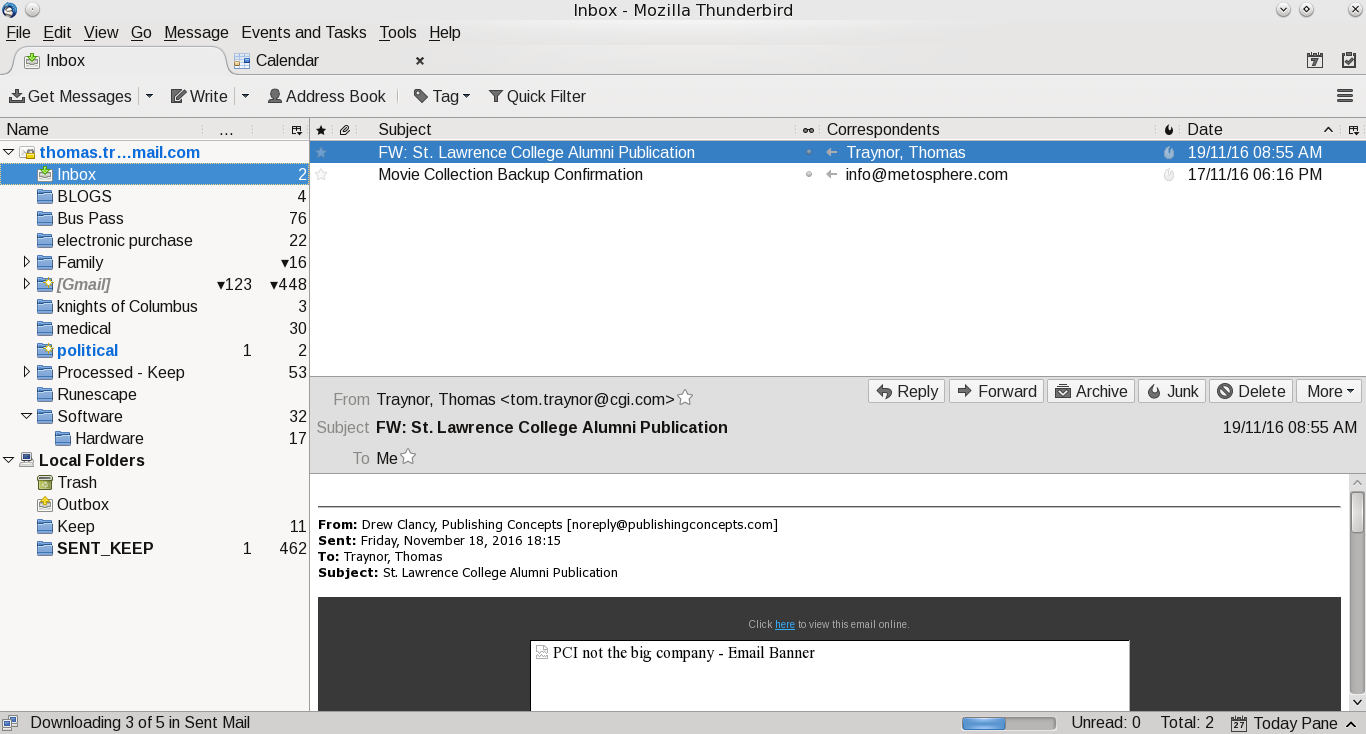
Screen Shots of my mail clients

Google Inbox for Android:


My main folder, I like it clean

Google Email for Android:

Main, again clean inbox


Thunderbird:

Mail

Calendar

Extensions

Mail filers

Rules for mail filters


Thursday, November 24, 2016

Software and Tools - Antivirus

The next thing on the list of things to do is a good antivirus package after you install your favourite browser and before you start serious web surfing.  Again, this is a personal preference and it all depends on what you want, need and are willing to pay for.  There are those who say it is all snake oil and useless.  They are welcome to their opinion and in my not so humble opinion it is needed.  It is another level of defense for you that will stop the known nasty software out there.  Why make it easy for hackers to take over your system and use your bandwidth to take down sites, steal your identity?  Will it be 100% effective, maybe not, but if they want to get into my system they will need to work on it and not have an open door.

There are a number of sites that do reviews and I have a list five sites I know.  There are a lot more, but, I don't know them, their methodology and if they got paid to do the reviews. 

For myself I was looking for an package that works in
  • Windows (I still have a machine left running Windows 10)
  • Android for our tablets via the Google Play store.
  • Android phone.  This is a low end model with limited resources.
  • Linux.
I found one common package that works very well in Windows and Android, but, right now my distro does not offer the Linux version of that product.  It does not slow down my machines, especially the low end phone and did catch crap that tried to get installed when someone sent me an email.  Avast works well enough, has a free version that does most of what I want and need.  The version does show ads, but, they are small and unobtrusive for me and don't slow my systems down.  For Linux I am looking at ClamAV as that is available in the distro of Linux I am using.  UBUNTU community has a good small page of various packages you can check out.

The Android screens looks like the following:


The Windows screens looks like the following:


Please remember, just because you are running an antivirus program you can surf wherever you want, click on anything, install anything and open questionable emails.  Nothing is 100% and safe surfing and email practices are required.  Antivirus software just gives you another level of defense.  You also should be keeping your software up to date and making regular backups (a future blog).

Saturday, November 19, 2016

Software and Tools - Browsers

This is the second in a group of blogs on software, tools and repositories.  One of the main tools I use and I suspect the majority of people is a web browser.  There are a number of great browsers out there and the one you use and like depends on your personal preferences (and biases).  For me since I run a Windows laptop (gaming), Android (tablets and phones) and Linux (laptops and netbook) I prefer Firefox and Chrome.  They run equally well on a cell phone right up to the laptop I am composing this blog on.  The Windows laptop (Windows 10) has Edge on, but I don't run it.  I may be biased, but, I don't trust the security on it and how much it is reporting back to MS about my searches and browsing habits.  I know Chrome and Firefox does do some reporting, but, so far they haven't abused my trust there.

This won't be all inclusive, but, a quick tour of my basic setup and hopefully will give you an idea of what they look like and a couple of things I added to assist me and secure my browsing.

If you use Windows click on Firefox if you want to go to the Mozilla site,  click on Chrome if you want to go to the Chrome site.  If you are using Android it is in the Play store and for just about every distribution of Linux it is part of the repositories that you can install (for me that is Synaptic).

For the rest of this blog the screen shots are from my Linux machine, but, Android and Windows have a similar layout and look-and-feel.  For all of the screenshots I used KSnapshotGwenview is used for quick-and-dirty edits (like rotate, resize and rename).  Google Drive is used to store all of my blog images and the GRIVE tool syncs that up for me (with my writing a BASH script front-end, my previous BLOG on that).

Firefox

Once you install Firefox and launch it you will get a screen something like below.

It is a rather plain and simple screen.  This is my personal preference as I don't like or want a lot of clutter.  I have turned off the menu bar, bookmark toolbar and the status bar.

I did add a few extensions (from the Mozilla site) for the status bar and for shutting down those annoying ads.


My Plugins are default to my Linux distro.  When there are bug fixes I use Synaptic to update when they are available.  I still have Flash installed, as much as I hate it for the security holes I still need it for accessing corporate materials when I log into the company site.


To see preferences click on the icon at the top right (looks like a hamburger) and click on the preferences icon (looks like a cog).  You will see a number of options that you can click on and are presented with a variety of settings.  On content I turned off the option to play DRM protected content and to block pop-up windows.  I also changed the font to Arial as I find that easier on my eyes.


For privacy I turned it up to as high as I can go.  I know sites can still snoop, but, I want them to know if they want my information they should ask me first.

For security I also have that set to maximum.


For good measure I use  uBlock Origin to shut down as much of the annoying ads and tracking when I do surf.  I turn it off for sites that respect me and don't flood me with annoying ads.  To see what the dashboard looks like you will need to keep on reading as it is in the Chrome section.

To summarize my settings:


  • Check to see if Firefox is my default browser;
  • Show blank page at start;
  • Search right now defaults to Google, I did disable Bing and Yahoo;
  • Disable play DRM;
  • Enable pop-up protection;
  • Privacy tracking on for private windows;
  • Never remember history;
  • Security, Warn & block all turned on!
  • Sync bookmarks, I have that turned on so it is easy to keep phone, tablet and laptops synced to the same set of bookmarks;
  • Downloads, ask me where to save; 
  • uBlock Origin, set up to hide as much crap as possible.  Good sites I open up;
  • Advanced I left at their defaults. 

Chrome

My other browser is Chrome.  There are times that sites have problems with Firefox and I use that.  It is also set up to link to my personal Google calendar and to use Google Docs.  Part of the time I run it for Facebook to chat with family and post various updates and use Firefox for general web browsing and gaming (Runescape).   Like Firefox I have a minimal screen display, I really don't like clutter.

To go to your settings click the vertical ... on the top right side, then click on settings.


By default the advanced settings are not displayed, scroll down to the bottom and click on +Show advanced settings.  You can see your browsing history, Extensions and Settings.  For privacy you can click on content settings and it pops up a privacy setting screen.

For extensions it will show what you have installed.  At the bottom it has Get more extensions that takes you the Chrome Web Store.  I really suggest you use just that site as you know that Google has done some checks on the quality and security of the extensions.  I know nasty extensions can slip in, but, when found they get yanked PDQ.

Like in Firefox I use uBlock origin.  It is small, light and very configurable.  I used to use Ad-Block, but, when they went to white listing ad sites I dumped it.  I pick what ads are presented to me and I will retain full control of that.

To summarize my settings:

  • Show blank page on startup;
  • Google is the default search page;
  • No 'Guest' browsing;
  • Cookies, clears when I shut down Chrome and 3rd party is blocked;
  • Let me choose when to run plug-in;
  • Do not allow tracking;
  • All other content settings at default;
  • Downloads, ask me where to save;
  • Cloud print is on, I use this only for stuff that isn't sensitive;
  • uBlock Origin, set up to hide as much crap as possible.  Good sites I open up;


Summary

Hopefully this is of use and a good starting point for your using either Firefox or Chrome as your main browsers.