Showing posts with label linux scripting. Show all posts

Saturday, August 27, 2016

Android blogger app - minor issue & fix

I have an Android tablet I use for email, Facebook, Twitter and light blogging.  The App I use is Blogger from Google.  I like it as it is simple and fast and normally very stable.  Today when I was syncing up my latest blogs I got an error with the account and it wanted me to add one.  I tried to add back in my current Google account, but, it wouldn't let me.  The fix was to uninstall the app and reinstall.  When it is reinstalled it will ask me for what account and I selected my main Google account.  Once that was done I got my blog and posts back.

I like the app as it allows me to do a quick backup to my Android device and I can quickly compose a blog when traveling and don't have network access.  I don't need all the bells and whistles, just be able to compose the basic text of the blog.  When I have access to a network I use my Linux laptop to clean up the blog and add any images required.  The images are stored in my Google Drive so I have the images where ever I go even if I don't have my laptop.  When I get the laptop I then run my Linux Bash script to sync the local drive with Google drive.

Next up is to do more reading about Blogger and see if there is a way I can script a backup of my blogs to the Linux machine so I don't lose my work.

Update:  I found there is a backup option.  Google has a post on how to do this.  It worked, but, it is a massive XML file.

Update 2:  There is a facility called Google Takeout.  It allows you to backup more than just blogger. You pick off what you want to backup and then it builds a ZIP file that they will send you a link to download the file.  Time to test this out.

Starting to build the backup

Waiting for that email, USB stick is ready!

Received the email that the backup is ready.  It is two files and several gigs for each.  This is a nice tool that allows you to backup your data.

Saturday, May 14, 2016

Adding Google Drive to my Linux Box

GRIVE Installation and scripting

I have been digging around to see if there is a Google Drive service available for my Linux box.  I preferred to have something like what I have on the high end laptop (windows 10) in that it looks like a drive and I can manipulate the files in any way I want and updates GDRIVE immediately.  So far there is nothing like that in LINUX, but, there is a package called GRIVE.  I read up the documentation on the package and saw that it was something that I could use for now.  I installed the package, followed the instructions to link the app to my GMAIL account and then did a synchronize.  The first run took several minutes while it downloaded all of the files and folders, but, when I run again the synchronize took only a few seconds.  While this isn't perfect it does allow me to access my GDRIVE files, make updates and then sync the changes.

I always like to automate my tasks if I have to run it more than once.  For jobs scheduled on a regular basis I prefer CRONTAB, for things not on a regular schedule I prefer a folder with scripts or links to do the job.  For GRIVE I wrote two very simple BASH scripts to automate my synchronizing my GDRIVE files.  The first one displays to the user what will be done and give them the option to continue or quit.  The second calls the first from an XTERM window where I set up the font to a readable size.  I dropped a link to the second script to my desktop and ran it.  The script is very simple, possibly over-kill, but, I like to automate things so one click does the work for me.  I ran the script this morning as I had two new images (for this blog entry) and it synchronized my files in several seconds.  There is a lot more to the script that what you see, but, it is just setting up the color variables and getting the system time.  I don't need to use the time yet, but, it is part of my normal BASH skeleton script.

Screen shots

BASH script to sync to Google Drive using GRIVE

What the BASH script presents to me when run

Full BASH script to run GRIVE

#! /bin/sh
# ANSI Colors
#
#  Version:
#    - Version 1.0.0 2016/05/15
#    - Copyright 2016 Thomas Traynor.
#    - Program is distributed under the terms of the GNU General Public License
#    - http://www.gnu.org/licenses/gpl.txt       
#    - Release Notes:
#
#
#  Notes:
#
# ------------------------------------------------------------


zSetANSI() {

# Foreground colors:
    uFGBK="\033[30m";   #Black
    uFGLRD="\033[31m";  #Low  Red
    uFGHRD="\033[91m";  #High Red
    uFGLGR="\033[32m";  #Low  Green
    uFGHGR="\033[92m";  #High Green
    uFGLYW="\033[33m";  #Low  Yellow
    uFGHYW="\033[93m";  #High Yellow
    uFGLBU="\033[34m";  #Low  Blue
    uFGHBU="\033[94m";  #High Blue
    uFGLMG="\033[35m";  #Low  Magenta
    uFGHMG="\033[95m";  #High Magenta
    uFGLCY="\033[36m";  #Low  Cyan
    uFGHCY="\033[96m";  #High Cyan
    uFGHGY="\033[37m";  #High Gray
    uFGLGY="\033[90m";  #Low  Gray
    uFGWT="\033[97m";   #White

# Background colors:  
    uBGBK="\033[40m";   #Black
    uBGLRD="\033[41m";  #Low  Red
    uBGHRD="\033[101m"; #High Red
    uBGLGR="\033[42m";  #Low  Green
    uBGHGR="\033[102m"; #High Green
    uBGLYW="\033[43m";  #Low  Yellow
    uBGHYW="\033[103m"; #High Yellow
    uBGLBU="\033[44m";  #Low  Blue
    uBGHBU="\033[104m"; #High Blue
    uBGLMG="\033[45m";  #Low  Magenta
    uBGHMG="\033[105m"; #High Magenta
    uBGLCY="\033[46m";  #Low  Cyan
    uBGHCY="\033[106m"; #High Cyan
    uBGLGY="\033[47m";  #Low  Gray
    uBGHGY="\033[107m"; #High Gray

# Underline:
    uFGULINE="\033[4m";
  
# Blink:
    uFGBLINK="\033[5m";
  
# Reset all:  
    uFGRESET="\033[0m"
}


#
#  Get the system clock and set to a variable.
#

zGetDATE() {

# System date.  For all date options type date --h on command line.

    uSYSYY=$(date +%Y);
    uSYSMM=$(date +%m);
    uSYSDY=$(date +%d);
    uSYSDT=$uSYSYY$uSYSMM$uSYSDY;
  
    uSYSHH=$(date +%H);
    uSYSMIN=$(date +%M);
    uSYSSEC=$(date +%S);
    uSYSTM=$uSYSHH$uSYSMIN$uSYSSEC;
  
    uSYSJDT=$(date +%j);
    uSYSWK=$(date +%W);
    uSYSDOW=$(date +%w);
    uSYSDAY=$(date +%A)  
    uSYSMTH=$(date +%B)
}

# ============================================================
# END OF ALL SUBROUTINES FOR THIS SCRIPT.
# ============================================================

zSetANSI;
zGetDATE;

# Define the working variable for return codes:
uRC=0;

# Get current directory name
uDir=$( cd "$( dirname "$0" )" && pwd);

#"

# Get process ID
uProcID=$$


#  Now echo out the stuff to the console:

clear;
echo ;
echo -e "${uFGHRD}Syncronize with Google Drive${uFGRESET}";
echo ;

cd ~/GoogleDrive

echo -e "${uFGLGR}This could take a while syncronizing the files."
echo -e "If you want to continue press ${uBGLGR}${uFGBLINK}${uFGBK}[ENTER]${uFGRESET}"
echo -e "${uFGLGR}otherwise ${uBGLGR}${uFGBLINK}${uFGBK}[CTRL-C]${uFGRESET}${uFGLGR}."
echo -e "${UFGRESET}"
read uLINE
grive

echo ;
echo -e "${uFGHRD}Syncronize Finished${uFGRESET}";
echo -e "${uFGLGR}press ${uBGLGR}${uFGBLINK}${uFGBK}[ENTER]${uFGRESET}${uFGLGR} to finish update"
read uLINE

Wednesday, May 04, 2016

A new midrange laptop for me and what I use for specific jobs

Some people may think that three laptops that I have are too many, but, I don't.  I have machines for specific tasks.  The netbook is an old machine that I bought years ago on sale and the HP is a refurbished model.  The Dell machine is the only new laptop and I bought it specifically for gaming and to store a lot of digital images.
 

Netbook:

I have the netbook set up with LUBUNTU.  That is great distro for a five year old netbook with 2 gigs of memory.  It allows me access to web mail, Facebook, Twitter and a few other things when I travel and it is very light and the battery lasts about 4-6 hours depending on what I am doing which is great when traveling.  If I am doing light digital editing it isn't to bad, a bit slow, but usable. 

HP Laptop

I picked up a nice mid-range laptop for my every day work at home.  It is a HP EliteBook 8440P.  Eight gigs of memory and one hundred and twenty-eight gig SSD.  I originally had LUBUNTU, but, something in how I did and configured caused the screen to go 'nuts' at times.  I put on PCLINUXOS and it has been rock solid.  This machine is my daily machine rather than my high end gaming system.  It allows ready access to social media (Facebook and Twitter), email and light gaming.  It also is used for digital editing and other daily work.

PCLINUXOS installed a lot of software I don't need and it was easy to remove them. I like the distro and I used it years ago and I see it has gotten better over time.  The desktop is KDE and it is close enough to Windows that anyone accustomed to Windows (up to 7) will be at home using it.  It is light enough on system resources that it is snappier than windows.  As an example this laptop launches in about thirty seconds (including the time for my to type in my password) and shuts down in about five seconds.  My gaming system takes about a minute to launch and about two minutes to shut down.

I am now playing Old School Runescape on the machine and it is as fast in a browser as when I am using my gaming system with the Runescape client software.

Todo

  • I transferred my various Bash scripts from the netbook here, but, I had to make minor tweaks due to the difference in terminals and the options used to compile Bash.  My next mini-project will be to look at the scripts and figure out how to rewrite them so that run on both systems without changes.
  • Set up and configure the Brother network printer.
  • Set up and configure the old scanner to work on this machine.
  • Install and configure additional software to play DVD movies.

Dell Gaming system

My high end machine is a Dell.  Right now it is running Windows 10.  I use this for heavy duty gaming and software that runs only on windows (income tax).  This machine has eight gigs of memory and a one terabyte drive.  This is my main machine for all of my digital photos and scanned documents.  Anything I do on the HP for digital images gets transferred here and once a month the files are backed up to an external one terabyte drive.

Thursday, March 31, 2016

Rotating wallpapers

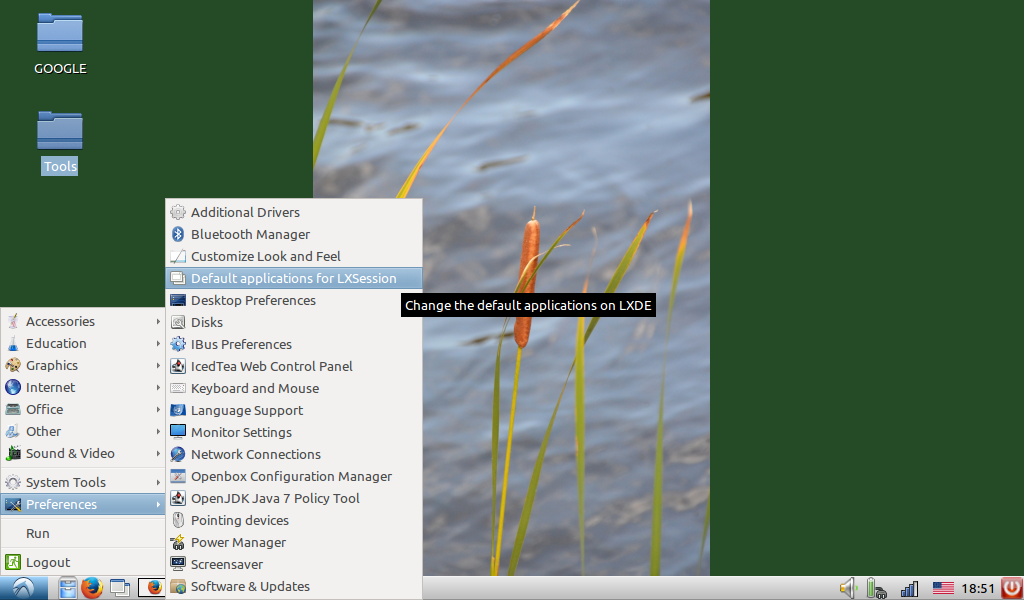
I got the wallpaper to change when I log on.  Minor fix to the command when starting up.  You start with 'Preferences' then pick 'Default applications for LXSessions'.  Click on the Autostart and create an entry like shown in the screen print.
LXSession settings


Shell command to rotate wallpaper


I then followed this up by seeing if I can put it into cron.  I did 'cron -e' from a command window and set it up to run every minute so I can see if would work.  Minutes passed and nothing happened.  I put in debug code to get the return code from pcmanfm and put it to a file.  Looking at the file I could see a return code of 1 so I knew that there was an error somewhere.  I check on-line and found an answer in stackoverflow.  I made a minor change in my script and it worked!  I reset cron to update it every 10 minutes and it still works.
cron settings to change wallpaper every 10 minutes

Bash script to change wallpaper

Monday, March 28, 2016

LINUX Bash Script skeleton code

I have been writing very simple Bash scripts for several years.  They are not complex, but, they help me automate tasks at home and work.  If I have to do something more than once I prefer to have a script automate that task. Over the years I have found that there are a lot of excellent on-line sites with information that helped me do my scripts.

From time-to-time this blog will be updated with new/updated skeleton script.

One site that I like is for color in Bash echo commands and they helped me when I was starting my use of color in scripts.  Most of my scripts don't need color, but, now and then I like to highlight something.  UBUNTU has a great forum area and I found a very nice script that allows me to quickly and easily change my background image. The link is here.

One of the first tasks I do with a new machine using LINUX and Z/OS Unix is to create a script library and place my skeleton bash template in that library.  I won't post the one from work as that is specific to the Z/OS environment and the client I work for.  The one I am posting is my personal template. When I find that I am using a piece of bash code on a regular basis I put it into the template and make it easier for me to find that one piece in the future.

My skeleton bash script is below.  I try to work with a basic naming standard.  User defined variables start with "u" and subroutines start with "z".  Everyone has their preferences, but, this is one I have been using for years and I am comfortable with it.  Version is showing as one as I finally got around to putting comments in and I figured that 1.00.00 is a good place to start.

START OF BASH SCRIPT


#! /bin/bash

# This is a skeleton script that has some of my bash codes commonly used
# in my scripts.
#
# Version:  1.00.00 - 2016/03/28 - TPT.  Initial version.
#

# ANSI Colors
zSetANSI() {

# Foreground colors:
    uFGBK="\033[30m";   #Black
    uFGLRD="\033[31m";  #Low  Red
    uFGHRD="\033[91m";  #High Red
    uFGLGR="\033[32m";  #Low  Green
    uFGHGR="\033[92m";  #High Green
    uFGLYW="\033[33m";  #Low  Yellow
    uFGHYW="\033[93m";  #High Yellow
    uFGLBU="\033[34m";  #Low  Blue
    uFGHBU="\033[94m";  #High Blue
    uFGLMG="\033[35m";  #Low  Magenta
    uFGHMG="\033[95m";  #High Magenta
    uFGLCY="\033[36m";  #Low  Cyan
    uFGHCY="\033[96m";  #High Cyan
    uFGHGY="\033[37m";  #High Gray
    uFGLGY="\033[90m";  #Low  Gray
    uFGWT="\033[97m";   #White

# Background colors:   
    uBGBK="\033[40m";   #Black
    uBGLRD="\033[41m";  #Low  Red
    uBGHRD="\033[101m"; #High Red
    uBGLGR="\033[42m";  #Low  Green
    uBGHGR="\033[102m"; #High Green
    uBGLYW="\033[43m";  #Low  Yellow
    uBGHYW="\033[103m"; #High Yellow
    uBGLBU="\033[44m";  #Low  Blue
    uBGHBU="\033[104m"; #High Blue
    uBGLMG="\033[45m";  #Low  Magenta
    uBGHMG="\033[105m"; #High Magenta
    uBGLCY="\033[46m";  #Low  Cyan
    uBGHCY="\033[106m"; #High Cyan
    uBGLGY="\033[47m";  #Low  Gray
    uBGHGY="\033[107m"; #High Gray

# Underline:
    uFGULINE="\033[4m";
   
# Blink:
    uFGBLINK="\033[5m";
   
# Reset all:   
    uFGRESET="\033[0m"
}


#
#  Get the system clock and set to a variable.
#

zGetDATE() {

# System date.  For all date options type date --h on command line.

    uSYSYY=$(date +%Y);
    uSYSMM=$(date +%m);
    uSYSDY=$(date +%d);
    uSYSDT=$uSYSYY$uSYSMM$uSYSDY;
   
    uSYSHH=$(date +%H);
    uSYSMIN=$(date +%M);
    uSYSSEC=$(date +%S);
    uSYSTM=$uSYSHH$uSYSMIN$uSYSSEC;
   
    uSYSJDT=$(date +%j);
    uSYSWK=$(date +%W);
    uSYSDOW=$(date +%w);
    uSYSDAY=$(date +%A)   
    uSYSMTH=$(date +%B)
}

# ============================================================
# END OF ALL SUBROUTINES FOR THIS SCRIPT.
# ============================================================

zSetANSI;
zGetDATE;

# Define the working variable for return codes:
uRC=0;

# Get current directory name
uDir=$( cd "$( dirname "$0" )" && pwd);

# Get process ID
uProcID=$$


#  Now echo out the stuff to the console:

clear;
echo "${uFGHRD}Process Information${uFGRESET}";
echo ;
echo "  ${uFGLGR}Directory........: " $uFGHGR $uDir;
echo "  ${uFGLGR}Process id.......: " $uFGHGR $uProcID;
echo "  ${uFGLGR}Directory........: " $uFGHGR $LOGNAME;
echo ;
echo $uFGHRD;
echo "Date information:" $uFGRESET;
echo "  ${uFGLYW}uSYSDT...........: " $uFGHYW $uSYSDT;
echo "  ${uFGLYW}uSYSTM...........: " $uFGHYW $uSYSTM;
echo "  ${uFGLYW}uSYSJDT..........: " $uFGHYW $uSYSJDT;
echo "  ${uFGLYW}uSYSWK...........: " $uFGHYW $uSYSWK;
echo "  ${uFGLYW}uSYSDOW..........: " $uFGHYW $uSYSDOW;
echo "  ${uFGLYW}uSYSDAY..........: " $uFGHYW $uSYSDAY;
echo "  ${uFGLYW}uSYSMTH..........: " $uFGHYW $uSYSMTH;

echo $uFGRESET;
echo $uFGHYW;
echo "ANSI Foreground color codes:" $uFGRESET;
echo "  RED..............: ${uFGLRD}Low ${uFGHRD}HIGH" $uFGRESET;
echo "  GREEN............: ${uFGLGR}Low ${uFGHGR}HIGH" $uFGRESET;
echo "  YELLOW...........: ${uFGLYW}Low ${uFGHYW}HIGH" $uFGRESET;
echo "  BLUE.............: ${uFGLBU}Low ${uFGHBU}HIGH" $uFGRESET;
echo "  MAGENTA..........: ${uFGLMG}Low ${uFGHMG}HIGH" $uFGRESET;
echo "  CYAN.............: ${uFGLCY}Low ${uFGHCY}HIGH" $uFGRESET;
echo "  GRAY.............: ${uFGLGY}Low ${uFGHGY}HIGH" $uFGRESET;

echo ;
echo $uFGHYW;
echo "ANSI Background color codes:" $uFGRESET;
echo "  RED..............: ${uBGLRD}Low ${uBGHRD}HIGH" $uFGRESET;
echo "  GREEN............: ${uBGLGR}${uFGBK}Low ${uBGHGR}HIGH" $uFGRESET;
echo "  YELLOW...........: ${uBGLYW}${uFGBK}Low ${uBGHYW}HIGH" $uFGRESET;
echo "  BLUE.............: ${uBGLBU}Low ${uBGHBU}${uFGBK}HIGH" $uFGRESET;
echo "  MAGENTA..........: ${uBGLMG}Low ${uBGHMG}${uFGBK}HIGH" $uFGRESET;
echo "  CYAN.............: ${uBGLCY}Low ${uBGHCY}${uFGBK}HIGH" $uFGRESET;
echo "  GRAY.............: ${uBGLGY}${uFGBK}Low ${uBGHGY}HIGH" $uFGRESET;


echo ;
echo $uFGHYW;
echo "ANSI Other color codes:" $uFGRESET;
echo ;
echo "  UNDERLINE........: ${uFGULINE}Underline" $uFGRESET;
echo "  BLINK............: ${uFGBLINK}Blink" $uFGRESET;
echo ;
echo "Script finishing with return code: " $uRC;


exit $uRC;

# ----------  END OF SCRIPT ----------


Saturday, March 26, 2016

A week in and tweaking LUBUNTU to fit

Now that I have been using LUBUNTU for a week I am now tweaking the system to make it easier for me.  If there is something I do more than once I want to automate it, even if it is a one line command.

I created a couple of folders and dropped in shortcuts or scripts of what I do.  Nothing earthshaking, but, they make my life easier.  One folder are one line commands.  XTERM with settings I prefer to work with, midnight commander and top.  After I get it all tweaked to the way I want the next thing is to learn how to add these to the menu.  Can I improve the scripts, yes!  This is just the start.

My Tools folder for building desktop shortcuts

Desktop setup for midnight commander

Midnight commander with font/colors I prefer
Midnight commander
 
In windows you can do something similar with shortcuts, but, I like linux as I can tweak things to work in exactly the way I want with simple text files and bash.  As things go on I will be building more and more tools to automate my work.  I do this where I work and I have a large toolkit there that automates almost all of my mainframe work that I have to do on a regular basis.

Update 1 - 2016/03/27:

Yay, I found out how to add entries to the menu.  Right now it is to the Other folder, but, that is a good step.  I had to copy my applications to */.local/share/applications and they showed up in menu.


My Menu now shows my apps

~/.local/share/applications

Update 2 - 2016/03/28:

Minor update, I added KATE to my editors.  I like it as it is small, fast, light and does what I need a code editor to do.