Showing posts with label Google. Show all posts

Sunday, October 14, 2018

Be alert on your email account name

For well over 10 years I have been using gmail with Thomas.Traynor and ThomasTraynor without a problem.  If you check how they resolve names link here you can see how it is done.  I have received emails from others in the past who thought they were contacting another Thomas in Ireland, but, after I point out that I am in Canada they found the real email address of the other Thomas rather quickly.

For the last week my inbox has been flooded with on average a dozen emails a day from another Thomas Traynor who has set up accounts with various merchants for buying items online.  I have checked my credit card and there are no weird billings there.  I also checked online and it appears to be a legit mailing destination.  I have been contacting each online store explaining the issue and for them to stop sending emails to my email account.

Two of the emails from the online stores have received requests to change it to another account and part of the note stated that they 'lost' access to 'thomastraynor'.  Thing is that he never had access to that as I have always had that and used it.  Google is quite good when you create an account and won't let you use one that is in use so I am puzzled on how (or if) he got that email name.  I am very good about checking my email account names as I have five different alerts in Google set up to trigger on my name and various other names (online games) are mentioned and never has it shown up being used in the United Kingdom.

Update 2018-11-11

It has quieted down a lot for my email.  So far there is just one company that is still sending me emails for the person who tries to use my email address.  One of the emails had an 'unsubcribe' link which I used.  The other emails there is no such option.  I have had email conversations with them and they told me there is nothing they can do unless I provide the information used to create the account.  I pointed out I own the email address and didn't create that account so I cannot give them what they asked for.  They told me 'sorry nothing we can do' email back, well they will find out what is going to happen when I get the next one.  I have a bookmark for the OFCOM site in the UK and the Scottish privacy site.  I will be doing a mailing to them detailing the fact that the TSP (Telecom Service Provider) refuses to remove my email address and they are sending private and confidential information to a third party even after that fact was pointed out to them.

Update 2018-04-21

The last company finally stopped sending me the email.  I found the link to the ICO and sent them a note.  They replied back if I had copies of the emails for them to start their investigation.  The telco kept telling me there was nothing to do, but, after the ICO finished the ICO told them to stop sending me the mails as it was a privacy violation. So far after two weeks nothing hit my inbox so it may be good now.  The main thing is to keep trying and if they are a regulated industry to send a complaint to the regulator.


Sunday, August 05, 2018

Android Google News update - Failure!

Google and their minions may think they know better than most of us, but, at times they do fail.  This failure in my less-than-humble opinion is the update to their 'Google News' app.  The version before was stable (never crashed for me) and allowed me to quickly and easily view news and update my selected sources for offline viewing.  I liked it as I could pull articles for reading on the bus to work.

The latest version isn't as friendly or works well.  It regularly crashes and at times several times in a row.  I had reported it each time, but, it feels they are going into a black hole as nothing has changed.  At times it stalls and gets application not responding, or, rarely it just shuts down.  I have just stopped telling them as I don't see any fixes when they do updates.  That may not be fair, but, it has been a couple of months and when I do feedback I point out the issues that are part of this blog.

The 'for you' and 'headlines' interface really needs to be looked at and fixed.  I am scrolling through the list of articles and it refreshes and takes me back up to the top.  If I am viewing the list it should just stop updates and use an indicator at the top flagging there are updates.  Tap the indicator and it updates the articles.  It is extremely annoying that I get pages down and it refreshes and when I scroll down to find that one article it isn't there any more.

The favourites section isn't all that bad, but, bad choices Google made for their interface on my sources makes it a pain to use.  The version before allowed me to refresh all of my sources I have flagged for downloading.  This one does not.  I don't know if it is supposed to automatically update, but, it does not.  If I don't go into each one and 'pull down' the list to for updating it won't download the articles.  It is a major pain each day as I have 25 sources for downloading.  I like being able to read articles offline on the bus and at work (we don't have public wi-fi where I work).  When they do fix this issue it would be nice if they allow us to pick the number of articles to be downloaded and the number of days.  Not all of us have unlimited internet and while I have a large data cap it would be nice to limit what this app downloads.

Visually it is nice, but, one more suggestion for Google.  How about allowing us to turn off images on the summary?  I am only interested in the text and if that interests me I will click on the article and then you can show me the pretty pictures.

Saturday, July 22, 2017

Upgraded PCLINUXOS and a new mouse

A few things that I had to do for the Linux box.  For the last couple of weeks I have noticed at times I would get a double click on the mouse when I pressed only once.  I am not surprised there as the machine is used for a MMORPG (Runescape)for at least one hour a day.  Reading online forums it is somewhat common and if you are brave you can disassemble the mouse and fix the issue.  I am not willing to do that so I checked out the stores and the Logitech mouse was on sale and I picked up a new one.  The old one still works and I will take the batteries out and store it as an emergency mouse.

The other thing is PCLINUXOS has stopped upgrading KDE 4 and a couple of packages I use are not being upgraded.  This is not a huge deal as it has been a few years so I am overdue for a system upgrade.  I used the backup software to create a TAR, but, I didn't notice I clicked the option to compress every file.  I made two copies, one to a USB hard drive and a second to a USB stick.  I then verified that the files were readable on another system before I started to reformat and rebuild this machine.  Like before it didn't take very long to install and reboot.  That is when I noticed that all the files I backed up were compressed with the BZ2 extension.

I did a lot of online reading and found a number of forums with fancy scripts that could do the work, but, rather than me taking a few hours of setting up a script and then run I would do it all manual.  It isn't as bad as you might think.  The major directory was all of my files on Google and I just reinstalled GRIVE2 and re-synced in about 30 minutes.  The other files I used midnight commander, navigated to each directory and manually typed 'bzip2 -d *.bz2'.  Midnight commander has a nice feature, if you press [ALT]-P it will bring up the prior command(s).  I used that for the Thunderbird, Firefox, documents and photo folders and in about 1 hour I was done.  I had to do each folder and sub-folder as bzip2 didn't have an option I could see that would allow me to automatically unpack recursively the folders.

KDE5 does look somewhat similar to KDE4 so the change isn't that jarring.  The theme that was the default I wasn't thrilled with, but, that is also easy to change.  So far it seems to be running smoothly and it feels faster (I haven't done any timings there).

There are still a few more things like configuring my network printer, reinstall the XSANE scanner software, but, just about everything else is there by default.  I also have to get accustomed to the new mouse as it is a bit smaller and I am accidentally right-clicking the mouse.

Sunday, January 01, 2017

Software and Tools - Backups

One of the most important things you can do after you secure your device is to make regular backups and just as important is to test your backups.

Why backup?

  • Hard drives fail.  It doesn't matter how new the drive is or even if it is a SSD they will fail sooner or later;
  • You lose your device or it is stolen;
  • You drop your device and now it does not work;
  • When you patch or update your operating system it fails.  It doesn't matter the O/S you are using, I have had failed Linux updates and it required me to rebuild the machine;
  • You migrate to a new device and want all the files on the old machine moved to the new machine;
  • You finger slips and you accidentally delete an important file/directory; 
  • There is a disaster (ie. fire or flood);
  • Your device(s) infected with a virus or a trojan.  Again, it doesn't matter the O/S you are using, there are nasty programs out there that works in Windows, Linux and OS/X.
If one or more of the above happens you will need a backup so that your important documents are available to you when you rebuild the device or copy to a new device.  I have had people come to me with dead and dying devices asking if I can pull off their data and they have not made any backups.  Too often I cannot recover all of their files and important documents, images, videos are lost and they don't have any backups.

Things to think about

How often do you backup? 

  • That all depends on your personal preferences and how many documents you are adding to your device;
  • If you don't create very many then it may be safe to backup infrequently (monthly); 
  • If you create a lot of files (like scanning family photos), then frequent backups (daily) may be a good thing;
  • Once you set a schedule stick to it.  I put up a recurring reminder in Google calendar to remind me of when backups should be run.  Also you can set up a recurring task in Windows and Linux (cron) to run your backup scripts on a set schedule.

How many copies do you want to keep?  

  • Again this is a personal preference, but, multiple full backups is a good thing just in case one fails for some reason; 
  • An option here is a monthly full backup and then weekly backups of new/changed (differential backups) files;
  • Another reason as backups may fail and if you have only one copy then you have nothing to go back to.  I know this happens as decades ago when at work we were doing a DRP (Disaster Recovery Plan) exercise at work and one of the corporate backup tapes failed.  It wasn't a major problem as we did keep multiple backups and restored from an older image;

Off-site location for your backups?  

  • It doesn't matter if you have a good set of backups if you cannot get access to your site;
  • How secure is the off-site.  If you have sensitive information you don't want anyone getting access to the backup;
  • You should also figure out who should have access to your backups and let them know where it is and how they can get access to the backups if required;

Media for backups.  

  • Decades ago floppies were the media, then CDs followed by USB drives;
  • When you backup make sure that the tools, hardware and software is there to allow you to read the backups.  An example of this is some time ago I had to pull off backups from my father-in-law 3.5" floppy drives as he didn't have a floppy drive in his machine.  We were lucky in that I have an external 3.5" USB floppy drive for this and it was set up in Linux.  I also have an external CD drive and a blu-ray drive (call me paranoid) so I can pull files from backups in that format;
  • To the cloud.  Don't depend on that as your main backup as it may not be there when you need it.  I like Google drive for a secondary backup myself and the bonus is that the files I put there are available anywhere I have a web browser (and the firewall allows access).  With the various sites getting hacked I also don't keep files there that are sensitive and when I do put up a file of that nature I use encryption on the file/directory.  I also have a small script using GRIVE in Linux to pull a backup from GOOGLE drive to my machine.

Software and file format for backups.  

  • Over time operating systems do change and the software that did the original backup may not run on your new device and the new devices may not even be able to read your backups;
  • I tend to work with the lowest common denominator for backups that does work across platforms.  I prefer to use "ZIP" files as I know Windows and Linux both can work with that file format.  I assume OS/X will be able to read them too, but, I don't use that operating system so I am not 100% sure;
  • On my Linux machine I am partial to KBACKUP.  It is fairly easy to set up and use and it stores the files in a format that I can open in an Linux distro and Windows;
  • On my Windows box I use a simple XCOPY routine.  It isn't pretty, but, it works and the files are in a format that my Linux machines can read;
  • For my Android devices they get backed up to Google drive;
  • Several times a year I take one of my backups and plug it into a different machine to see if it is readable and I can pull one or more files off the backup.  Make sure what is backed up can be restored!  It is also a quick and easy test to see if your restore steps work and if there is anything else you should be doing when restoring from a backup;

When you restore.

  • If the restore is due to a virus or a trojan I strongly recommend that you don't ever use your backups until you have a clean and patched machine.  If the machine is still infected and the media you are using can be written to you don't want those backup files corrupted;
  • Make a checklist of what you need to do the restore and the steps performed when doing a restore.  This includes steps on how to verify that the restore worked;

My KBACKUP routine

Here are screen shots of my starting KBACKUP, running the backup and when it finishes.
Shortcut in my toolbox

Loading my backup profile

Directory & file list for backup

Backup running

Backup done with filename

Monday, November 28, 2016

Software and Tools - Email

This is the fourth blog on various tools that I use.  Email is a personal preference for what works for you.  Most people I suspect are using Outlook as that is preferred corporate email client and it comes as part of Windows.  My personal preference is actually multiple clients.  My main one is Thunderbird.  It works well in Windows and Linux.  For my Android devices I have two.  GMAIL for Google email (backup client for my Android tablet) and mailbox provided by my ISP.  The last client I use is INBOX from Google.  INBOX is only for my main GMAIL account.  I like this client it as it stays out of my way and allows me to quickly organize and process my mail.

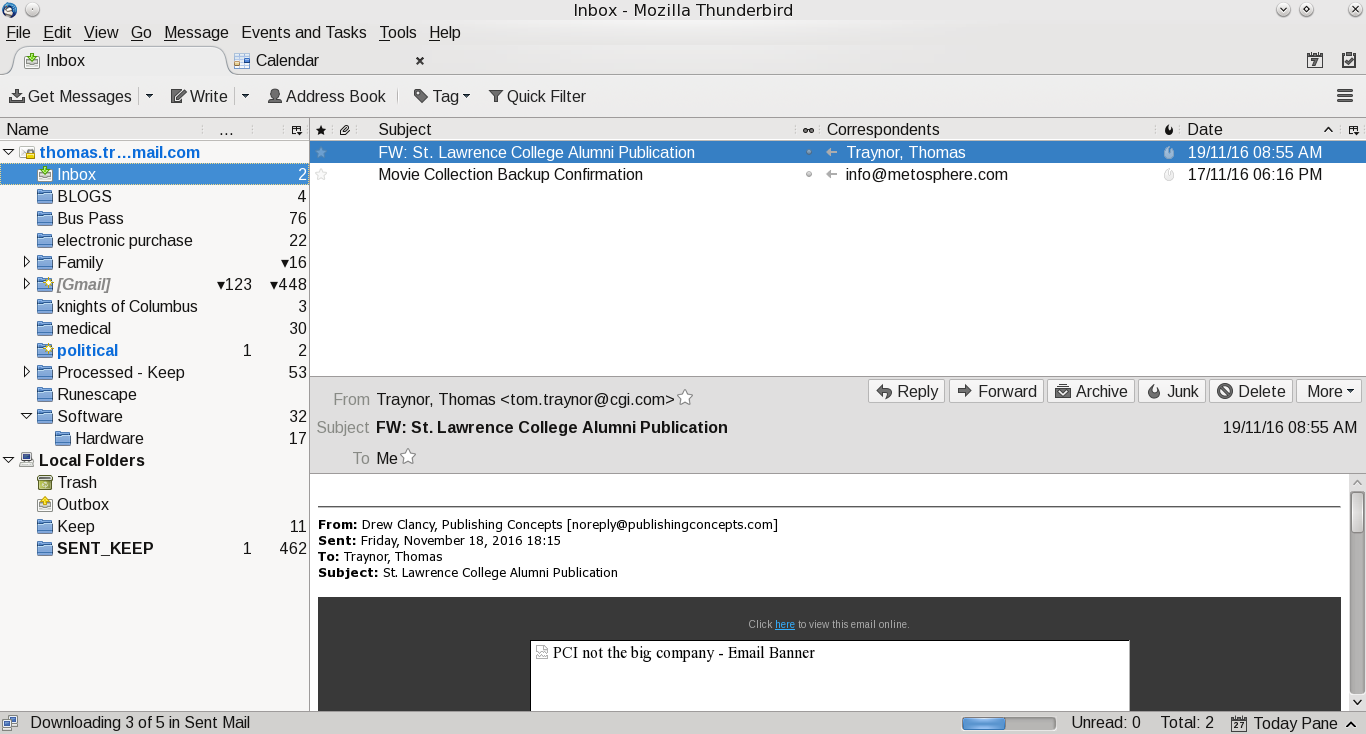
Thunderbird, like Outlook, allows you to create mail rules to categorize (or delete) your email based on rules.  Where I work they use Outlook and I have dozens of rules based on the sender.  The screen prints further in this blog shows the screen, but, at this time my Linux client doesn't have rules as the Windows machine is my main work machine for email (mail from the boss is highest priority and flagged to action immediately, projects go into their own folder).  It doesn't matter what client you use, rules allows you to order your work and focus on what is important.  

In Thunderbird I added an extension to link to my Google Calendar.  I find that handy as I can quickly add/change/delete events when something hits my inbox.  Outlook has that built in and it is a handy option no matter what client you use.

The one thing I never do is open attachments in emails when I don't know the sender.  Even when I know the sender I don't open it up (even in Linux) until I ask if they have sent that file.  My personal preference is to create a folder in my Google Drive, give them access and ask them to upload the file there.  I also have auto-load images in Thunderbird turned off.  Most of the times I don't need to see 'pretty' images and focus just on the text of the message.

The one last client I use is the Google web-mail client.  I like this tool as I can be anywhere and as long as I have access to the internet and a browser I can pick up my mail.

For me I have multiple personal email accounts.
  • My main Google account (linked to this blog);
  • A throwaway account I use for when I am not sure the site will not spam my main Google account.  When it gets too bad I just dump it and create a new throwaway account;
  • A Yahoo account.  This is from many years ago when I didn't have Google mail.  I keep it as it is handy like my throwaway Google account;
  • A Google account for my online gaming.  Some of the sites asks you to register your email account and excluding one game (Runescape) they all use this account;
  • My ISP provides email accounts and I have one set up.  This is for notifications from the ISP and my family usually sends email to this one;

 A few suggestions for your email:

  • If you are using the email from your ISP see if they have spam filters.  If they do, turn them on and use them.  It may not be perfect, but, I find that the one I use is over 99% accurate.  The few times it isn't I flag the email as legitimate and the next time it shows up in my inbox without a problem;
  • If you have an anti-virus and it can integrate with your email client turn it on!  It is another level of defense and I don't see the impact to my client in Windows; 
  • Make use of mail filters.  I use them to categorize my mail and it allows me to focus on what I deem to be important;
  • Guard your email account.  Have a main one for friends and family and only a few others.  For everything else create a throwaway.  If the mail is important you can either forward it to your main email, or, have it as an additional account in your mail client (like Thunderbird does);
Other tools:
  • For those who want to digitally sign your email or encrypt Thunderbird has a support page for this.  At this time I haven't added one; 

Screen Shots of my mail clients

Google Inbox for Android:


My main folder, I like it clean

Google Email for Android:

Main, again clean inbox


Thunderbird:

Mail

Calendar

Extensions

Mail filers

Rules for mail filters


Saturday, November 19, 2016

Software and Tools - Browsers

This is the second in a group of blogs on software, tools and repositories.  One of the main tools I use and I suspect the majority of people is a web browser.  There are a number of great browsers out there and the one you use and like depends on your personal preferences (and biases).  For me since I run a Windows laptop (gaming), Android (tablets and phones) and Linux (laptops and netbook) I prefer Firefox and Chrome.  They run equally well on a cell phone right up to the laptop I am composing this blog on.  The Windows laptop (Windows 10) has Edge on, but I don't run it.  I may be biased, but, I don't trust the security on it and how much it is reporting back to MS about my searches and browsing habits.  I know Chrome and Firefox does do some reporting, but, so far they haven't abused my trust there.

This won't be all inclusive, but, a quick tour of my basic setup and hopefully will give you an idea of what they look like and a couple of things I added to assist me and secure my browsing.

If you use Windows click on Firefox if you want to go to the Mozilla site,  click on Chrome if you want to go to the Chrome site.  If you are using Android it is in the Play store and for just about every distribution of Linux it is part of the repositories that you can install (for me that is Synaptic).

For the rest of this blog the screen shots are from my Linux machine, but, Android and Windows have a similar layout and look-and-feel.  For all of the screenshots I used KSnapshot.  Gwenview is used for quick-and-dirty edits (like rotate, resize and rename).  Google Drive is used to store all of my blog images and the GRIVE tool syncs that up for me (with my writing a BASH script front-end, my previous BLOG on that).

Firefox

Once you install Firefox and launch it you will get a screen something like below.

It is a rather plain and simple screen.  This is my personal preference as I don't like or want a lot of clutter.  I have turned off the menu bar, bookmark toolbar and the status bar.

I did add a few extensions (from the Mozilla site) for the status bar and for shutting down those annoying ads.


My Plugins are default to my Linux distro.  When there are bug fixes I use Synaptic to update when they are available.  I still have Flash installed, as much as I hate it for the security holes I still need it for accessing corporate materials when I log into the company site.


To see preferences click on the icon at the top right (looks like a hamburger) and click on the preferences icon (looks like a cog).  You will see a number of options that you can click on and are presented with a variety of settings.  On content I turned off the option to play DRM protected content and to block pop-up windows.  I also changed the font to Arial as I find that easier on my eyes.


For privacy I turned it up to as high as I can go.  I know sites can still snoop, but, I want them to know if they want my information they should ask me first.

For security I also have that set to maximum.


For good measure I use  uBlock Origin to shut down as much of the annoying ads and tracking when I do surf.  I turn it off for sites that respect me and don't flood me with annoying ads.  To see what the dashboard looks like you will need to keep on reading as it is in the Chrome section.

To summarize my settings:


  • Check to see if Firefox is my default browser;
  • Show blank page at start;
  • Search right now defaults to Google, I did disable Bing and Yahoo;
  • Disable play DRM;
  • Enable pop-up protection;
  • Privacy tracking on for private windows;
  • Never remember history;
  • Security, Warn & block all turned on!
  • Sync bookmarks, I have that turned on so it is easy to keep phone, tablet and laptops synced to the same set of bookmarks;
  • Downloads, ask me where to save; 
  • uBlock Origin, set up to hide as much crap as possible.  Good sites I open up;
  • Advanced I left at their defaults. 

Chrome

My other browser is Chrome.  There are times that sites have problems with Firefox and I use that.  It is also set up to link to my personal Google calendar and to use Google Docs.  Part of the time I run it for Facebook to chat with family and post various updates and use Firefox for general web browsing and gaming (Runescape).   Like Firefox I have a minimal screen display, I really don't like clutter.

To go to your settings click the vertical ... on the top right side, then click on settings.


By default the advanced settings are not displayed, scroll down to the bottom and click on +Show advanced settings.  You can see your browsing history, Extensions and Settings.  For privacy you can click on content settings and it pops up a privacy setting screen.

For extensions it will show what you have installed.  At the bottom it has Get more extensions that takes you the Chrome Web Store.  I really suggest you use just that site as you know that Google has done some checks on the quality and security of the extensions.  I know nasty extensions can slip in, but, when found they get yanked PDQ.

Like in Firefox I use uBlock origin.  It is small, light and very configurable.  I used to use Ad-Block, but, when they went to white listing ad sites I dumped it.  I pick what ads are presented to me and I will retain full control of that.

To summarize my settings:

  • Show blank page on startup;
  • Google is the default search page;
  • No 'Guest' browsing;
  • Cookies, clears when I shut down Chrome and 3rd party is blocked;
  • Let me choose when to run plug-in;
  • Do not allow tracking;
  • All other content settings at default;
  • Downloads, ask me where to save;
  • Cloud print is on, I use this only for stuff that isn't sensitive;
  • uBlock Origin, set up to hide as much crap as possible.  Good sites I open up;


Summary

Hopefully this is of use and a good starting point for your using either Firefox or Chrome as your main browsers.

Sunday, November 13, 2016

Possible ad-malware attempt

For the last several days my Android tablet was opening windows at random.  At first I thought it was me, but, yesterday the following happened and the tablet was sitting on the table untouched:

  • Multiple search windows open;
  • Over 12 tabs opened in the browser going to a number of sites with the same prefix.  I won't name it as I don't want them to get the ad revenue;
  • My BANKING app was opened up.  I don't have auto-sign-in there so no damage done.  I checked the bank account from my Linux machine and no activity to my account (yay!);
  • Multiple apps opened up.  Again these had ads so I suspect they were trying to maximize their ad revenues.  Either that or they wanted someone to pay a lot of ad money for spam clicks;
I know what the last app I installed so I suspected that app as they are ad supported.  After I removed the app and let the machine sit for 24 hours I had no more random windows opened so I may have guessed correctly.

I also run AVAST on the machine and I scanned everything and it was clean.  I know if it is very new the scanner may not detect it, but, I wanted to make as sure as possible I wasn't infected with a known virus.

I also sent Google a feedback that the app may have ad-malware and see if there is anything that they could see and do.  May not be much, but, at least I wanted to make them aware of the issue.

Sunday, November 06, 2016

Looks like the U.S. GOP don't vet their email lists

The last few days I have been receiving emails from the Republican party (except for one who was Libertarian) looking for money.  I suspect they bought the list from somewhere and didn't check to see if the recipients is an American citizen (or a person who has a green card).  Google flagged all of them as spam so the time, effort and money was wasted.  Upside for me is that they all have unsubscribe which I used, hopefully they will take the request and remove my address.  It really doesn't matter as they are all flagged as spam by Google.

I checked the FEC (Federal Election Commission) site to confirm what I suspected.  Only U.S citizens can financially contribute (or those with a green card).  For the various emails (except the last one) they all resolved to one common URL.

I can understand getting the rare mail from a Libertarian candidate (or small 3rd parties).  Limited resources (money and people) means buying a list and do a blind mailing and hope for the best.  The Republican party being a major political party should not be doing this.  I thought it would be a well financed, well managed and well resourced operation that would run a tight scripted operation and vet all mailings going out and not buying a list and doing blind mailings.

So far nothing from the Democratic party for email.  Also, NONE of the Canadian political parties have done bulk emails to me.  That may be due to our anti-spam laws would apply to them.


Sunday, September 18, 2016

A new tool for my wife

Yesterday I picked up a new tool for my wife.  She does have a laptop and it is in our office.  The problem is that she has had a stroke a year ago and it is much too large and heavy for her to carry it downstairs and use it while sitting on her lap.  Factory Direct up the street had refurbished models of the Acer Chromebook for $129 (Canadian) that looked like it could do what she wanted and is light enough she can carry it around with one hand.  Her needs were simple, web browsing (news, weather and a few other sites), email and Facebook.  She has a tablet for her gaming and Facebook that she uses daily.

The Chromebook did it all right from the start without issues.  I made a minor tweak to turn off the touch-pad as I installed a wireless mouse.  It took only a minute to find how to do that on the web (I bookmarked that for future reference on the Chromebook).  The only minor quibble I have is that 16 gigs isn't enough (and I am not spending more money to install a new larger SSD).  It appears that the O/S takes up a fair bit of space and leaves 1 gig for the user.  I can live with that as she is using it only for light weight web work and does not need a huge amount of drive space.  I did format in Linux a SD card (16 gigs) and inserted it in the slot and pointed the downloads to that so we don't use valuable drive space for when she downloads files.  I don't see how to change the directory for the cache (yet) to point it there.  I did try to install our wireless printer, but, we have an older model and isn't supported by Cloud Print.

I did set up links at the bottom of the screen to email, browser, Facebook, Google drive so most of her normal tasks are one click away.  Next up is to see how the battery life is for her without it being plugged in.  If you are looking for a lightweight machine for simple tasks that don't depend on local storage the Chromebooks are an option to look at.

Saturday, August 27, 2016

Android blogger app - minor issue & fix

I have an Android tablet I use for email, Facebook, Twitter and light blogging.  The App I use is Blogger from Google.  I like it as it is simple and fast and normally very stable.  Today when I was syncing up my latest blogs I got an error with the account and it wanted me to add one.  I tried to add back in my current Google account, but, it wouldn't let me.  The fix was to uninstall the app and reinstall.  When it is reinstalled it will ask me for what account and I selected my main Google account.  Once that was done I got my blog and posts back.

I like the app as it allows me to do a quick backup to my Android device and I can quickly compose a blog when traveling and don't have network access.  I don't need all the bells and whistles, just be able to compose the basic text of the blog.  When I have access to a network I use my Linux laptop to clean up the blog and add any images required.  The images are stored in my Google Drive so I have the images where ever I go even if I don't have my laptop.  When I get the laptop I then run my Linux Bash script to sync the local drive with Google drive.

Next up is to do more reading about Blogger and see if there is a way I can script a backup of my blogs to the Linux machine so I don't lose my work.

Update:  I found there is a backup option.  Google has a post on how to do this.  It worked, but, it is a massive XML file.

Update 2:  There is a facility called Google Takeout.  It allows you to backup more than just blogger. You pick off what you want to backup and then it builds a ZIP file that they will send you a link to download the file.  Time to test this out.

Starting to build the backup

Waiting for that email, USB stick is ready!

Received the email that the backup is ready.  It is two files and several gigs for each.  This is a nice tool that allows you to backup your data.

Friday, June 03, 2016

My wishlist for Google Play Store

I have been using Android devices for many years.  I love the phones and tablets as I have more control over what it has and does than other products.  I will admit it isn't perfect and some makers do put on crap-ware that is difficult if not impossible to remove, but, for the most part it just works and in low end devices.

The only issue I have is with the Play store.  For the most part it isn't bad when selecting categories and if you want 'free' or 'paid'.  I am surprised though that the company that made it big in search doesn't have a good search function in the play store.  When I go to look for a specific area or product I usually need to wade through page after page of apps before I find what I want.  This isn't just for apps, I have the same issue when looking for books and movies too.  My wish list for filters would be:
  • Author
  • Last update (range of values)
  • Rating (range of values)
  • Number of ratings (range of values)
  • Cost (range of values)
  • Ad-supported
  • Include or exclude apps I have already installed
It would be nice to have a permanent filter too.  There are times I know certain companies/people make crap-ware that I have no interest in seeing.  Also it would be nice to toggle Boolean functions (and, or, not) for the categories.

I was looking for a household inventory app so I can record what we own, what room, serial number (or bar-code), photo, cost and notes.  There were too many to quickly go through.  For those that looked interesting I checked to see when the last update was.  Not being fair, but, if it wasn't updated in the last year I am not interested as there is a chance the author abandoned the app.  It took me almost an hour to wade through a lot of crap and what was there didn't fit what I was looking for.  A lot of listings were for insurance companies and I didn't want to see those.  I don't have a problem paying for an app, but, it would be nice if they had a free-to-try limited version of the app so I can see if it would fit what I need and then pay them after.  I did that for the DVD library app 'Movie Collection + Inventory' by Metosphere.  It had a free option and after a quick try I paid for the full version.  When I get some free time I will be checking out the book collection app.  This is the model I prefer, try it first, buy it second if I like it.

One other option is do what I do best, write a quick and dirty program or a create a spreadsheet to store the information.  I originally did a quick-and-dirty spreadsheet for the DVD library until I found the app I liked and then imported a lot of data.  I try to keep things simple and LibreOffice has a great spreadsheet and it allows me to export out to various formats (like PDF and CSV).