Showing posts with label Runescape. Show all posts

Sunday, August 18, 2019

Runescape old school and Linux

A while ago the Java plugin I was using in Pale Moon stopped working.  Nothing on the part of Pale Moon, but, the plugin isn't supported anymore.  That wouldn't be a problem except I play Runescape Old School on it and I was forced to use my Windows 10 machine until I figured out how to get it to work again.

I played around with various settings and even tried to launch it from the command line without any luck.  I then checked into the Runescape forums with the search on 'LINUX' and I found a thread (quick link 278-279-207-66116400) describing how to search for 'RuneScape Unix Client'.  I did a search on the web and found in GitHub a client.  I didn't want to try this on my main Linux box just in case, but, the Win10 box I am running virtual machine software and I had MX linux running on it too.  I followed the GitHub instructions (running as root for Debian) and when it was done I had a working Runescape client.  You do have to be patient (especially for getting the keys). 

There seems to be a difference in what I have in the VM and my main box as I couldn't find the Runescape client launch in the menu.  I realized that was the one machine I haven't moved to MX, but, ANTIX.  I had to do a backup of my documents and rebuilt so that every machine in the house works with one version of Linux.  Once it was working I installed the client and it worked...

RS Client with OSRS picked

OSRS Welcome screen

Monday, April 22, 2019

Trying out Lubuntu 19.04

This isn't a full review of the distro, just a quick walk-through of a distro I was using  over a few years.  I moved off to AntiX last year as I wanted to cut back  the number of distros I was running at home to make it easier for me to manage my home network.  Lubuntu was OK, but, I was looking for a lighter and faster distro for my eight year old netbook and AntiX worked quite well.

With the latest one I wanted to see what it looked like and how it worked.  The installation went quite well using VirtualBox.  I tweaked the setup a  bit.  I changed from 1 gig to 4 gigs of memory (the netbook has two), 2 CPUs (matching the netbook) and the default screen from 800x600 (netbook) to 1360x768 (making it readable on my WIN10 machine).


The initial profile works quite well and is responsive on the machine as set up.  It feels snappy and doesn't use a lot of system resources. 
As you can see above in a shell and Htop it doesn't use a lot of memory when it starts up and I am fairly sure I can tweak the startup to use less by turning off processes I don't want or need.

One of the first tweaks I made is to change the double-click mouse to single-click.  I have been using that for years and that is what I am comfortable with.

Using the Muon package manager was quite easy and is close enough to working like Synaptic that I didn't notice a big difference.  The only difference is when you search.  In Synaptic you type in the word(s) and press [SEARCH] and in Muon it searches as you type.

I did a 'Check for Updates' after install and installed the few updated packages that were there.  The process was quick even in the VM and while it was doing that I launched Firefox and tweaked the settings there while the system updated.  The one package I hoped was there is PaleMoon.  I use that to play Runescape Old School on my other Linux boxes as it still supports the Java Plugin and Firefox doesn't.  Palemoon does have a Linux download option and that is something I need to explore later on and the JRE.  For that I will look at the netbook for the packages I have installed and mirror that setup in the VM.


My next step is to burn a USB stick with the distro and see how it launches and runs on the netbook and my main Linux box.  If that looks good I may convert the old media box from Vista (shudder) to Linux and the wife's laptop also.  AntiX is good, but, so far Lubuntu looks pretty good too.

Overall if you have an older machine this may be a distro to check out if you don't want to go to AntiX..

Sunday, March 18, 2018

Looking at one Linux Distro for home

At home we use Linux on almost all of our computers.  The only exception right now is one laptop with Windows 10 so I can run my tax software.  Each machine has its own Linux that best works for that device.  That is getting to be a bit of a pain as some packages are not available for some distros (like the Pale Moon browser).

My netbook (Acer Aspire One D255E) I bought years ago as there was a chance I would be traveling and I wanted a light weight computer that would allow me to quickly pick up email, browse, chat with family.  The machine originally had Windows 7 starter and that was quickly replaced with Linux Lubuntu.  I picked that as it was very light weight and quickly launched.  While Lubuntu is a great package there are things I couldn't do easily and I had to write bash scripts to do those tasks (like turn off the touch pad when logging in).  It also would not play one of the browser based games I play (Runescape) as the latest Firefox and Chrome disabled the ability to launch Java which is why I am using Pale Moon.  I normally don't play online with the machine (which is what I am composing this blog entry with), but, it is nice to have if I start to travel again.


My wife's laptop is running Netrunner as that worked on machine as other distros had problems with the video card or the wireless network card.  It is a great distro, and worked well on her machine.

We have a media tower in the living room hooked up so that we can stream shows, plug in USB sticks for picture shows and a quick way to browse the net without having to bring down one of the laptops.  It is running PCLinuxOS and that is also an excellent distro as just about everything is there (including Pale Moon).  It is also what I am running on my HP laptop and it just works and is not too bad on system resource usage.

I wanted to consolidate everything with PCLinux, but, when I tried it on the netbook it would either crash as start or run so slow it was almost useless.  Not a problem as I could always use Lubuntu if I could get PCLinuxOS to work on the wife's machine.  When I did the launch it would crash on the video card that the machine had and I was not willing to play around with settings to make it work in case my wife did something and break the setup.

Next up i tried Linux Mint on the netbook.  I figured if it worked well there it should work well on the other machines.  It did launch and worked very well.  It is a bit slower that Lubuntu, but, not enough to be a deal breaker.  It recognized everything and just worked.  I proceeded to make a complete backup of all my folders and then reimaged the machine with Mint.  A few obervations:
  • Pale moon isn't available, but, their web site does give instructions on how to download & install.  The only quirk I had was when I tried to install with my non-admin account it would accept the password for the admin account (more about that later).  I signed out and then launched the admin account and did the install there without an issue.
  • The first account you define when starting up is by default the ADMIN (root) account so be very aware of that.  That is what I had to log in as when doing the Pale moon installation from.
  • There are a lot of patches so when you launch for the first time do it from admin and get everything patched up.  Once you get that done define a regular account that you will use every day.
  • It is slower than Lubuntu so be patient at times.  When I log in there is about a 15-20 second wait from when I supply my userid and password and when the main screen shows unlike Lubuntu which takes a couple of seconds.  The same is true for logoff.
  • There is a setting for mouse where you can go to the touchpad and click the option to turn it off when it detects an external mouse.  This is much nicer than Lubuntu where I had a custom bash script written to toggle the mouse off.
  • The screen is smaller than a normal laptop and some of the screens do not fit and cannot be resized to fit.  I found a workaround by holding the [ALT] key and holding the left mouse button I can move the window around.
  • Most software you need is automatically installed.  The only thing was the browser I use and then the XSANE package for when I scan documents.  It does come with Scanlite that I may try later on.
Later on I will have to plug in the USB stick with Mint into my wife's machine and see how it all works.  I am hoping that it 'just works' and then I can image her machine to Mint.  I have already done a full backup of all her documents.

Last task will be later in the evening on the media box and re-image that machine to Mint.  I don't have to back up anything there as we don't save files, but, use the Internet for content.

End result is that I should be down to just two distros at most (PCLinuxOS and Mint).

Update 1:

Jane's machine has been updated to Mint.  I still have to finish configuration, but, the system boots up and her account is active.  Next up is to restore the backup of her documents, install Thunderbird for email and a number of games she likes to play.  The only machine left to convert is the media box as I think I will leave my main machine alone (PCLinuxOS).

Saturday, July 22, 2017

Upgraded PCLINUXOS and a new mouse

A few things that I had to do for the Linux box.  For the last couple of weeks I have noticed at times I would get a double click on the mouse when I pressed only once.  I am not surprised there as the machine is used for a MMORPG (Runescape)for at least one hour a day.  Reading online forums it is somewhat common and if you are brave you can disassemble the mouse and fix the issue.  I am not willing to do that so I checked out the stores and the Logitech mouse was on sale and I picked up a new one.  The old one still works and I will take the batteries out and store it as an emergency mouse.

The other thing is PCLINUXOS has stopped upgrading KDE 4 and a couple of packages I use are not being upgraded.  This is not a huge deal as it has been a few years so I am overdue for a system upgrade.  I used the backup software to create a TAR, but, I didn't notice I clicked the option to compress every file.  I made two copies, one to a USB hard drive and a second to a USB stick.  I then verified that the files were readable on another system before I started to reformat and rebuild this machine.  Like before it didn't take very long to install and reboot.  That is when I noticed that all the files I backed up were compressed with the BZ2 extension.

I did a lot of online reading and found a number of forums with fancy scripts that could do the work, but, rather than me taking a few hours of setting up a script and then run I would do it all manual.  It isn't as bad as you might think.  The major directory was all of my files on Google and I just reinstalled GRIVE2 and re-synced in about 30 minutes.  The other files I used midnight commander, navigated to each directory and manually typed 'bzip2 -d *.bz2'.  Midnight commander has a nice feature, if you press [ALT]-P it will bring up the prior command(s).  I used that for the Thunderbird, Firefox, documents and photo folders and in about 1 hour I was done.  I had to do each folder and sub-folder as bzip2 didn't have an option I could see that would allow me to automatically unpack recursively the folders.

KDE5 does look somewhat similar to KDE4 so the change isn't that jarring.  The theme that was the default I wasn't thrilled with, but, that is also easy to change.  So far it seems to be running smoothly and it feels faster (I haven't done any timings there).

There are still a few more things like configuring my network printer, reinstall the XSANE scanner software, but, just about everything else is there by default.  I also have to get accustomed to the new mouse as it is a bit smaller and I am accidentally right-clicking the mouse.

Monday, November 28, 2016

Software and Tools - Email

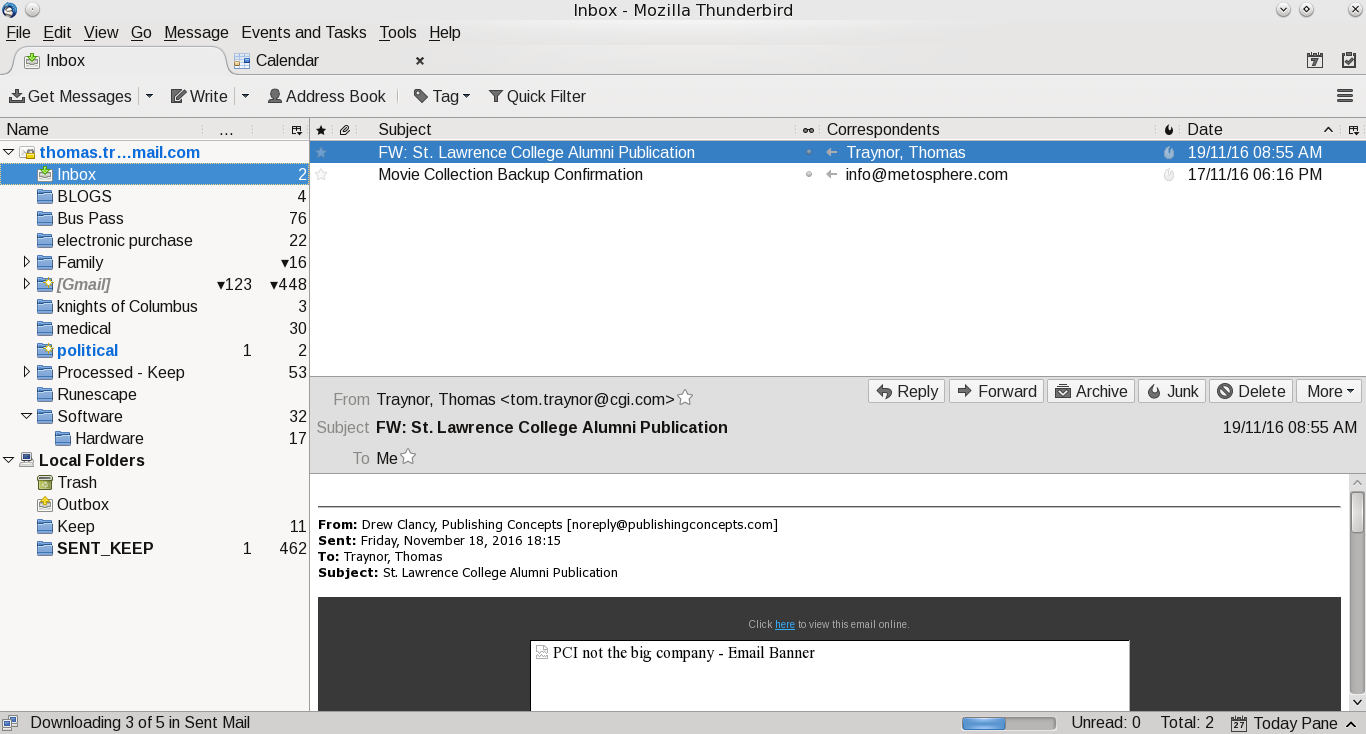
This is the fourth blog on various tools that I use.  Email is a personal preference for what works for you.  Most people I suspect are using Outlook as that is preferred corporate email client and it comes as part of Windows.  My personal preference is actually multiple clients.  My main one is Thunderbird.  It works well in Windows and Linux.  For my Android devices I have two.  GMAIL for Google email (backup client for my Android tablet) and mailbox provided by my ISP.  The last client I use is INBOX from Google.  INBOX is only for my main GMAIL account.  I like this client it as it stays out of my way and allows me to quickly organize and process my mail.

Thunderbird, like Outlook, allows you to create mail rules to categorize (or delete) your email based on rules.  Where I work they use Outlook and I have dozens of rules based on the sender.  The screen prints further in this blog shows the screen, but, at this time my Linux client doesn't have rules as the Windows machine is my main work machine for email (mail from the boss is highest priority and flagged to action immediately, projects go into their own folder).  It doesn't matter what client you use, rules allows you to order your work and focus on what is important.  

In Thunderbird I added an extension to link to my Google Calendar.  I find that handy as I can quickly add/change/delete events when something hits my inbox.  Outlook has that built in and it is a handy option no matter what client you use.

The one thing I never do is open attachments in emails when I don't know the sender.  Even when I know the sender I don't open it up (even in Linux) until I ask if they have sent that file.  My personal preference is to create a folder in my Google Drive, give them access and ask them to upload the file there.  I also have auto-load images in Thunderbird turned off.  Most of the times I don't need to see 'pretty' images and focus just on the text of the message.

The one last client I use is the Google web-mail client.  I like this tool as I can be anywhere and as long as I have access to the internet and a browser I can pick up my mail.

For me I have multiple personal email accounts.
  • My main Google account (linked to this blog);
  • A throwaway account I use for when I am not sure the site will not spam my main Google account.  When it gets too bad I just dump it and create a new throwaway account;
  • A Yahoo account.  This is from many years ago when I didn't have Google mail.  I keep it as it is handy like my throwaway Google account;
  • A Google account for my online gaming.  Some of the sites asks you to register your email account and excluding one game (Runescape) they all use this account;
  • My ISP provides email accounts and I have one set up.  This is for notifications from the ISP and my family usually sends email to this one;

 A few suggestions for your email:

  • If you are using the email from your ISP see if they have spam filters.  If they do, turn them on and use them.  It may not be perfect, but, I find that the one I use is over 99% accurate.  The few times it isn't I flag the email as legitimate and the next time it shows up in my inbox without a problem;
  • If you have an anti-virus and it can integrate with your email client turn it on!  It is another level of defense and I don't see the impact to my client in Windows; 
  • Make use of mail filters.  I use them to categorize my mail and it allows me to focus on what I deem to be important;
  • Guard your email account.  Have a main one for friends and family and only a few others.  For everything else create a throwaway.  If the mail is important you can either forward it to your main email, or, have it as an additional account in your mail client (like Thunderbird does);
Other tools:
  • For those who want to digitally sign your email or encrypt Thunderbird has a support page for this.  At this time I haven't added one; 

Screen Shots of my mail clients

Google Inbox for Android:


My main folder, I like it clean

Google Email for Android:

Main, again clean inbox


Thunderbird:

Mail

Calendar

Extensions

Mail filers

Rules for mail filters


Saturday, November 19, 2016

Software and Tools - Browsers

This is the second in a group of blogs on software, tools and repositories.  One of the main tools I use and I suspect the majority of people is a web browser.  There are a number of great browsers out there and the one you use and like depends on your personal preferences (and biases).  For me since I run a Windows laptop (gaming), Android (tablets and phones) and Linux (laptops and netbook) I prefer Firefox and Chrome.  They run equally well on a cell phone right up to the laptop I am composing this blog on.  The Windows laptop (Windows 10) has Edge on, but I don't run it.  I may be biased, but, I don't trust the security on it and how much it is reporting back to MS about my searches and browsing habits.  I know Chrome and Firefox does do some reporting, but, so far they haven't abused my trust there.

This won't be all inclusive, but, a quick tour of my basic setup and hopefully will give you an idea of what they look like and a couple of things I added to assist me and secure my browsing.

If you use Windows click on Firefox if you want to go to the Mozilla site,  click on Chrome if you want to go to the Chrome site.  If you are using Android it is in the Play store and for just about every distribution of Linux it is part of the repositories that you can install (for me that is Synaptic).

For the rest of this blog the screen shots are from my Linux machine, but, Android and Windows have a similar layout and look-and-feel.  For all of the screenshots I used KSnapshotGwenview is used for quick-and-dirty edits (like rotate, resize and rename).  Google Drive is used to store all of my blog images and the GRIVE tool syncs that up for me (with my writing a BASH script front-end, my previous BLOG on that).

Firefox

Once you install Firefox and launch it you will get a screen something like below.

It is a rather plain and simple screen.  This is my personal preference as I don't like or want a lot of clutter.  I have turned off the menu bar, bookmark toolbar and the status bar.

I did add a few extensions (from the Mozilla site) for the status bar and for shutting down those annoying ads.


My Plugins are default to my Linux distro.  When there are bug fixes I use Synaptic to update when they are available.  I still have Flash installed, as much as I hate it for the security holes I still need it for accessing corporate materials when I log into the company site.


To see preferences click on the icon at the top right (looks like a hamburger) and click on the preferences icon (looks like a cog).  You will see a number of options that you can click on and are presented with a variety of settings.  On content I turned off the option to play DRM protected content and to block pop-up windows.  I also changed the font to Arial as I find that easier on my eyes.


For privacy I turned it up to as high as I can go.  I know sites can still snoop, but, I want them to know if they want my information they should ask me first.

For security I also have that set to maximum.


For good measure I use  uBlock Origin to shut down as much of the annoying ads and tracking when I do surf.  I turn it off for sites that respect me and don't flood me with annoying ads.  To see what the dashboard looks like you will need to keep on reading as it is in the Chrome section.

To summarize my settings:


  • Check to see if Firefox is my default browser;
  • Show blank page at start;
  • Search right now defaults to Google, I did disable Bing and Yahoo;
  • Disable play DRM;
  • Enable pop-up protection;
  • Privacy tracking on for private windows;
  • Never remember history;
  • Security, Warn & block all turned on!
  • Sync bookmarks, I have that turned on so it is easy to keep phone, tablet and laptops synced to the same set of bookmarks;
  • Downloads, ask me where to save; 
  • uBlock Origin, set up to hide as much crap as possible.  Good sites I open up;
  • Advanced I left at their defaults. 

Chrome

My other browser is Chrome.  There are times that sites have problems with Firefox and I use that.  It is also set up to link to my personal Google calendar and to use Google Docs.  Part of the time I run it for Facebook to chat with family and post various updates and use Firefox for general web browsing and gaming (Runescape).   Like Firefox I have a minimal screen display, I really don't like clutter.

To go to your settings click the vertical ... on the top right side, then click on settings.


By default the advanced settings are not displayed, scroll down to the bottom and click on +Show advanced settings.  You can see your browsing history, Extensions and Settings.  For privacy you can click on content settings and it pops up a privacy setting screen.

For extensions it will show what you have installed.  At the bottom it has Get more extensions that takes you the Chrome Web Store.  I really suggest you use just that site as you know that Google has done some checks on the quality and security of the extensions.  I know nasty extensions can slip in, but, when found they get yanked PDQ.

Like in Firefox I use uBlock origin.  It is small, light and very configurable.  I used to use Ad-Block, but, when they went to white listing ad sites I dumped it.  I pick what ads are presented to me and I will retain full control of that.

To summarize my settings:

  • Show blank page on startup;
  • Google is the default search page;
  • No 'Guest' browsing;
  • Cookies, clears when I shut down Chrome and 3rd party is blocked;
  • Let me choose when to run plug-in;
  • Do not allow tracking;
  • All other content settings at default;
  • Downloads, ask me where to save;
  • Cloud print is on, I use this only for stuff that isn't sensitive;
  • uBlock Origin, set up to hide as much crap as possible.  Good sites I open up;


Summary

Hopefully this is of use and a good starting point for your using either Firefox or Chrome as your main browsers.

Sunday, September 25, 2016

IoT now being used for DDOS

It was a matter of time before this happened.  With the various manufacturers of IoT devices worried more about being first, market share or making money (or all three) they have left device security as an afterthought.  Brian Krebs is one of the first that I know of where those not happy about what he does tried to silence him using a massive DDOS attack that appears to be using IoT devices.  In the past he has been a target for swatting.  At this time his site Krebs on Security isn't back up  at the time of this blog being written and that is a shame.  Ars Technica has a good article on this subject that you can read.  I agree with the article that this is troubling development.

The problem is that it is like the wild west with IoT devices.  If manufacturers don't do something about security and upgrades soon web providers and/or the government will do something about it and the potential will be stifled.

I see this as an opportunity for Anti-virus makers and software developers.  If they can develop a simple application to
  1. Scan your network for IoT devices and present you with their findings;
  2. Make it extensible to allow us to manually identify and flag IoT devices that were not detected and send feedback to the developer about the new devices;
  3. Identify potential security holes and list options the user can make to secure their devices;
  4. Automate the fixing of holes and changing settings to make the devices more secure.
Developers who can do the above will have an opportunity to make money while helping secure the newest set of toys on the internet.
In the long term manufacturers need to put security and the ability to upgrade at the top of the list and to firmly step on the neck of marketers and tell them NO, security comes first, not market share or money.  That is hard as they will tell everyone that a company is in the business of making money.  That is fair, but, they should be reminded that if people cannot trust their product that they will not be making any money!

I may be an exception to many people looking at IoT products for the home (or office) as I look at:
  1. Can it be patched when security holes are identified and fixed?
  2. Does it ask out of the box for the user to create an admin account and passwords and does not have default?
  3. Good documentation on the production and configuration.  A simple user guide will suffice and then point the user to a web site with more detailed documentation;
  4. Certificates can be added/changed/deleted so that one default certificate isn't used on every device made by that manufacturer?  I do this for my browsers and Linux boxes.  There are certain countries (like China and soon Russia) where I disable ALL their certificates as I don't trust them, may be wrong or paranoid, but, my machines my rules;
  5. A tool to manage the IoT device and the ability to log all actions to a write only area by the IoT device.  The reasons for Write-Only is that if hackers do get in we want to make it a bit harder to alter the logs;
  6. What is the support policy and expected life for support?
  7. If it requires using the cloud to do its work
    • Is the communication encrypted end-to-end?
    • Can the end user create their own local server?  The reason is that the manufacturer will eventually stop supporting the product or go out of business.  When that happens we are left with a working product, but, non-functional.

At this time hackers can (and are) using the weaknesses in IoT devices to create massive bot nets and disrupt access for individuals and companies (like battlenet and Runescape) and shut down access until they cave to their demands or spend a massive amount of money to mitigate future DDOS attacks.  Hackers are not stupid and realize that this is a ripe area to exploit as there isn't much in the way to detect and stop them.  The individuals behind the DDOS are bullies and need to be recognized as such and treated as such.  Krebs and battlenet are the most recent victims, but, will not be the last.  The question is how many more times and how many people will be impacted before action is taken?

Update 2016/09/25:

Looks like Krebs site is back up.  Good to know that he is back and the DDOS bullies didn't win this time.

Wednesday, May 04, 2016

A new midrange laptop for me and what I use for specific jobs

Some people may think that three laptops that I have are too many, but, I don't.  I have machines for specific tasks.  The netbook is an old machine that I bought years ago on sale and the HP is a refurbished model.  The Dell machine is the only new laptop and I bought it specifically for gaming and to store a lot of digital images.
 

Netbook:

I have the netbook set up with LUBUNTU.  That is great distro for a five year old netbook with 2 gigs of memory.  It allows me access to web mail, Facebook, Twitter and a few other things when I travel and it is very light and the battery lasts about 4-6 hours depending on what I am doing which is great when traveling.  If I am doing light digital editing it isn't to bad, a bit slow, but usable. 

HP Laptop

I picked up a nice mid-range laptop for my every day work at home.  It is a HP EliteBook 8440P.  Eight gigs of memory and one hundred and twenty-eight gig SSD.  I originally had LUBUNTU, but, something in how I did and configured caused the screen to go 'nuts' at times.  I put on PCLINUXOS and it has been rock solid.  This machine is my daily machine rather than my high end gaming system.  It allows ready access to social media (Facebook and Twitter), email and light gaming.  It also is used for digital editing and other daily work.

PCLINUXOS installed a lot of software I don't need and it was easy to remove them. I like the distro and I used it years ago and I see it has gotten better over time.  The desktop is KDE and it is close enough to Windows that anyone accustomed to Windows (up to 7) will be at home using it.  It is light enough on system resources that it is snappier than windows.  As an example this laptop launches in about thirty seconds (including the time for my to type in my password) and shuts down in about five seconds.  My gaming system takes about a minute to launch and about two minutes to shut down.

I am now playing Old School Runescape on the machine and it is as fast in a browser as when I am using my gaming system with the Runescape client software.

Todo

  • I transferred my various Bash scripts from the netbook here, but, I had to make minor tweaks due to the difference in terminals and the options used to compile Bash.  My next mini-project will be to look at the scripts and figure out how to rewrite them so that run on both systems without changes.
  • Set up and configure the Brother network printer.
  • Set up and configure the old scanner to work on this machine.
  • Install and configure additional software to play DVD movies.

Dell Gaming system

My high end machine is a Dell.  Right now it is running Windows 10.  I use this for heavy duty gaming and software that runs only on windows (income tax).  This machine has eight gigs of memory and a one terabyte drive.  This is my main machine for all of my digital photos and scanned documents.  Anything I do on the HP for digital images gets transferred here and once a month the files are backed up to an external one terabyte drive.

Tuesday, January 12, 2016

Main machine upgraded to windows 10

After a few months of waiting and waiting for the bugs to show up & get fixed I finally upgraded my Dell laptop from Win8.1 to Win10.  Since Windows 8.0 is not being supported the writing is on the wall for Windows 8.1.  I figure this is a good time as the 'free' upgrade is still available and the initial bugs should have had a chance to get fixed.

Before I did the upgrade I did a full backup of every file I had on the laptop just-in-case.  The upgrade itself took about an hour and it looks good so far.  The upgrade preserved my settings, but, there are still a few tweaks to go for privacy.

One of the first things I did was to make Cortana an icon on my desktop bar at the bottom, I just don't want it hogging valuable real estate.  The second was to make Firefox the default browser as I never use IE (now Edge).  My anti-virus (Avast) still runs without issue and no glitches so far.

Over the next few days I will be stress testing the upgrade by playing my favorite on-line game (Old school Runescape), my office suite (LibreOffice), email (Thunderbird) and graphics (GIMP & Irfanview), scanner (older model Epson) and lastly my printers (wired laser & wi-fi inkjet).


Update 2016/02/13

True color doesn't work properly.  It is Windows 8.1 only.  First step is to turn autostart off, then true color off.  If you don't do it that way it can't be turned off at start-up.

Saturday, August 08, 2015

My Windows 10 upgrade experience

Pre-Installation


It finally happened, Windows had a notice on my netbook that the Win10 upgrade was ready.  First thing I did was to make sure I had a backup of my data just in case.  I wanted to do my netbook first as it is an older, slower machine and if the upgrade worked well on that machine it should work well on my high end laptop.

The machine is an Acer Aspire One D255E.
  • CPU - Intel Atom N455 - 1.66 GHz
  • Memory - 2 Gigs (I upgraded from 1 Gig last month)
  • Storage - 160 gigs


Installation

The process itself was very painless.  Be prepared to spend at least three hours for the upgrade.

Download, Configuration and Installation

Once you click the start it is almost hands off.  All you need is patience.  For the most part it does a good job of telling you what it is doing.  Towards the end it even informed me that it was taking a bit longer than normal which in itself is a nice touch from Microsoft.

The following screen captures is what you should see during the installation up to the point of your customizing the setup.


Custom Install process

Once you get through all of this you can start the final process.  I strongly suggest you pick the custom option.  This way you can turn off the sharing of information and ensure your default browser stays as the default.

Your old password is used


I am not sharing everything with MS

More things I turned off

Here is where you can modify default apps

I turned off a number of apps as I have my own

I like this, they know it is a bit slow & lets you know

When done it brings you to what you are familiar with

I tested out Old School Runescape


It actually seems to run better in Win10


There are other things I will be doing, but, there are online articles explaining this better that I can.  Do a search on 'How To Stop Windows 10 from using your PC bandwith' on how to turn off your sharing your bandwidth for downloading Win10 upgrade.

This blog was written on the Win10 netbook in Firefox and so far I have not encountered any problems.  Avast worked without issue, Irfanview worked without an issue and Runescape runs without a problem.

Update 2015/08/16

So far it has been running very well.  Did an update and it worked well and asked to reboot when finished.  Browser updated without issue and playing OSRS is nice and no lagg there.