Showing posts with label BASH. Show all posts

Sunday, March 18, 2018

Looking at one Linux Distro for home

At home we use Linux on almost all of our computers.  The only exception right now is one laptop with Windows 10 so I can run my tax software.  Each machine has its own Linux that best works for that device.  That is getting to be a bit of a pain as some packages are not available for some distros (like the Pale Moon browser).

My netbook (Acer Aspire One D255E) I bought years ago as there was a chance I would be traveling and I wanted a light weight computer that would allow me to quickly pick up email, browse, chat with family.  The machine originally had Windows 7 starter and that was quickly replaced with Linux Lubuntu.  I picked that as it was very light weight and quickly launched.  While Lubuntu is a great package there are things I couldn't do easily and I had to write bash scripts to do those tasks (like turn off the touch pad when logging in).  It also would not play one of the browser based games I play (Runescape) as the latest Firefox and Chrome disabled the ability to launch Java which is why I am using Pale Moon.  I normally don't play online with the machine (which is what I am composing this blog entry with), but, it is nice to have if I start to travel again.


My wife's laptop is running Netrunner as that worked on machine as other distros had problems with the video card or the wireless network card.  It is a great distro, and worked well on her machine.

We have a media tower in the living room hooked up so that we can stream shows, plug in USB sticks for picture shows and a quick way to browse the net without having to bring down one of the laptops.  It is running PCLinuxOS and that is also an excellent distro as just about everything is there (including Pale Moon).  It is also what I am running on my HP laptop and it just works and is not too bad on system resource usage.

I wanted to consolidate everything with PCLinux, but, when I tried it on the netbook it would either crash as start or run so slow it was almost useless.  Not a problem as I could always use Lubuntu if I could get PCLinuxOS to work on the wife's machine.  When I did the launch it would crash on the video card that the machine had and I was not willing to play around with settings to make it work in case my wife did something and break the setup.

Next up i tried Linux Mint on the netbook.  I figured if it worked well there it should work well on the other machines.  It did launch and worked very well.  It is a bit slower that Lubuntu, but, not enough to be a deal breaker.  It recognized everything and just worked.  I proceeded to make a complete backup of all my folders and then reimaged the machine with Mint.  A few obervations:
  • Pale moon isn't available, but, their web site does give instructions on how to download & install.  The only quirk I had was when I tried to install with my non-admin account it would accept the password for the admin account (more about that later).  I signed out and then launched the admin account and did the install there without an issue.
  • The first account you define when starting up is by default the ADMIN (root) account so be very aware of that.  That is what I had to log in as when doing the Pale moon installation from.
  • There are a lot of patches so when you launch for the first time do it from admin and get everything patched up.  Once you get that done define a regular account that you will use every day.
  • It is slower than Lubuntu so be patient at times.  When I log in there is about a 15-20 second wait from when I supply my userid and password and when the main screen shows unlike Lubuntu which takes a couple of seconds.  The same is true for logoff.
  • There is a setting for mouse where you can go to the touchpad and click the option to turn it off when it detects an external mouse.  This is much nicer than Lubuntu where I had a custom bash script written to toggle the mouse off.
  • The screen is smaller than a normal laptop and some of the screens do not fit and cannot be resized to fit.  I found a workaround by holding the [ALT] key and holding the left mouse button I can move the window around.
  • Most software you need is automatically installed.  The only thing was the browser I use and then the XSANE package for when I scan documents.  It does come with Scanlite that I may try later on.
Later on I will have to plug in the USB stick with Mint into my wife's machine and see how it all works.  I am hoping that it 'just works' and then I can image her machine to Mint.  I have already done a full backup of all her documents.

Last task will be later in the evening on the media box and re-image that machine to Mint.  I don't have to back up anything there as we don't save files, but, use the Internet for content.

End result is that I should be down to just two distros at most (PCLinuxOS and Mint).

Update 1:

Jane's machine has been updated to Mint.  I still have to finish configuration, but, the system boots up and her account is active.  Next up is to restore the backup of her documents, install Thunderbird for email and a number of games she likes to play.  The only machine left to convert is the media box as I think I will leave my main machine alone (PCLinuxOS).

Saturday, May 14, 2016

Adding Google Drive to my Linux Box

GRIVE Installation and scripting

I have been digging around to see if there is a Google Drive service available for my Linux box.  I preferred to have something like what I have on the high end laptop (windows 10) in that it looks like a drive and I can manipulate the files in any way I want and updates GDRIVE immediately.  So far there is nothing like that in LINUX, but, there is a package called GRIVE.  I read up the documentation on the package and saw that it was something that I could use for now.  I installed the package, followed the instructions to link the app to my GMAIL account and then did a synchronize.  The first run took several minutes while it downloaded all of the files and folders, but, when I run again the synchronize took only a few seconds.  While this isn't perfect it does allow me to access my GDRIVE files, make updates and then sync the changes.

I always like to automate my tasks if I have to run it more than once.  For jobs scheduled on a regular basis I prefer CRONTAB, for things not on a regular schedule I prefer a folder with scripts or links to do the job.  For GRIVE I wrote two very simple BASH scripts to automate my synchronizing my GDRIVE files.  The first one displays to the user what will be done and give them the option to continue or quit.  The second calls the first from an XTERM window where I set up the font to a readable size.  I dropped a link to the second script to my desktop and ran it.  The script is very simple, possibly over-kill, but, I like to automate things so one click does the work for me.  I ran the script this morning as I had two new images (for this blog entry) and it synchronized my files in several seconds.  There is a lot more to the script that what you see, but, it is just setting up the color variables and getting the system time.  I don't need to use the time yet, but, it is part of my normal BASH skeleton script.

Screen shots

BASH script to sync to Google Drive using GRIVE

What the BASH script presents to me when run

Full BASH script to run GRIVE

#! /bin/sh
# ANSI Colors
#
#  Version:
#    - Version 1.0.0 2016/05/15
#    - Copyright 2016 Thomas Traynor.
#    - Program is distributed under the terms of the GNU General Public License
#    - http://www.gnu.org/licenses/gpl.txt       
#    - Release Notes:
#
#
#  Notes:
#
# ------------------------------------------------------------


zSetANSI() {

# Foreground colors:
    uFGBK="\033[30m";   #Black
    uFGLRD="\033[31m";  #Low  Red
    uFGHRD="\033[91m";  #High Red
    uFGLGR="\033[32m";  #Low  Green
    uFGHGR="\033[92m";  #High Green
    uFGLYW="\033[33m";  #Low  Yellow
    uFGHYW="\033[93m";  #High Yellow
    uFGLBU="\033[34m";  #Low  Blue
    uFGHBU="\033[94m";  #High Blue
    uFGLMG="\033[35m";  #Low  Magenta
    uFGHMG="\033[95m";  #High Magenta
    uFGLCY="\033[36m";  #Low  Cyan
    uFGHCY="\033[96m";  #High Cyan
    uFGHGY="\033[37m";  #High Gray
    uFGLGY="\033[90m";  #Low  Gray
    uFGWT="\033[97m";   #White

# Background colors:  
    uBGBK="\033[40m";   #Black
    uBGLRD="\033[41m";  #Low  Red
    uBGHRD="\033[101m"; #High Red
    uBGLGR="\033[42m";  #Low  Green
    uBGHGR="\033[102m"; #High Green
    uBGLYW="\033[43m";  #Low  Yellow
    uBGHYW="\033[103m"; #High Yellow
    uBGLBU="\033[44m";  #Low  Blue
    uBGHBU="\033[104m"; #High Blue
    uBGLMG="\033[45m";  #Low  Magenta
    uBGHMG="\033[105m"; #High Magenta
    uBGLCY="\033[46m";  #Low  Cyan
    uBGHCY="\033[106m"; #High Cyan
    uBGLGY="\033[47m";  #Low  Gray
    uBGHGY="\033[107m"; #High Gray

# Underline:
    uFGULINE="\033[4m";
  
# Blink:
    uFGBLINK="\033[5m";
  
# Reset all:  
    uFGRESET="\033[0m"
}


#
#  Get the system clock and set to a variable.
#

zGetDATE() {

# System date.  For all date options type date --h on command line.

    uSYSYY=$(date +%Y);
    uSYSMM=$(date +%m);
    uSYSDY=$(date +%d);
    uSYSDT=$uSYSYY$uSYSMM$uSYSDY;
  
    uSYSHH=$(date +%H);
    uSYSMIN=$(date +%M);
    uSYSSEC=$(date +%S);
    uSYSTM=$uSYSHH$uSYSMIN$uSYSSEC;
  
    uSYSJDT=$(date +%j);
    uSYSWK=$(date +%W);
    uSYSDOW=$(date +%w);
    uSYSDAY=$(date +%A)  
    uSYSMTH=$(date +%B)
}

# ============================================================
# END OF ALL SUBROUTINES FOR THIS SCRIPT.
# ============================================================

zSetANSI;
zGetDATE;

# Define the working variable for return codes:
uRC=0;

# Get current directory name
uDir=$( cd "$( dirname "$0" )" && pwd);

#"

# Get process ID
uProcID=$$


#  Now echo out the stuff to the console:

clear;
echo ;
echo -e "${uFGHRD}Syncronize with Google Drive${uFGRESET}";
echo ;

cd ~/GoogleDrive

echo -e "${uFGLGR}This could take a while syncronizing the files."
echo -e "If you want to continue press ${uBGLGR}${uFGBLINK}${uFGBK}[ENTER]${uFGRESET}"
echo -e "${uFGLGR}otherwise ${uBGLGR}${uFGBLINK}${uFGBK}[CTRL-C]${uFGRESET}${uFGLGR}."
echo -e "${UFGRESET}"
read uLINE
grive

echo ;
echo -e "${uFGHRD}Syncronize Finished${uFGRESET}";
echo -e "${uFGLGR}press ${uBGLGR}${uFGBLINK}${uFGBK}[ENTER]${uFGRESET}${uFGLGR} to finish update"
read uLINE

Wednesday, May 04, 2016

Touchpad on/off

Having the laptop touch-pad on when I have a mouse is a pain.  I dug through the system to see if there was a setting to turn it off when a mouse was connected, but, I couldn't find it.  I did the next best thing, I create two simple scripts.  One to turn it on and one to turn it off.  The command was synclient TouchPadOff=n where n is 1 for off and 0 for on.  I then created links to the main screen where I can quickly turn it on or off.  Yes, you can do it in one script, but, this was a quick and dirty solution and it works well enough for me.

Scripts for touchpad control

Link on desktop when I turn it on/off

A new midrange laptop for me and what I use for specific jobs

Some people may think that three laptops that I have are too many, but, I don't.  I have machines for specific tasks.  The netbook is an old machine that I bought years ago on sale and the HP is a refurbished model.  The Dell machine is the only new laptop and I bought it specifically for gaming and to store a lot of digital images.
 

Netbook:

I have the netbook set up with LUBUNTU.  That is great distro for a five year old netbook with 2 gigs of memory.  It allows me access to web mail, Facebook, Twitter and a few other things when I travel and it is very light and the battery lasts about 4-6 hours depending on what I am doing which is great when traveling.  If I am doing light digital editing it isn't to bad, a bit slow, but usable. 

HP Laptop

I picked up a nice mid-range laptop for my every day work at home.  It is a HP EliteBook 8440P.  Eight gigs of memory and one hundred and twenty-eight gig SSD.  I originally had LUBUNTU, but, something in how I did and configured caused the screen to go 'nuts' at times.  I put on PCLINUXOS and it has been rock solid.  This machine is my daily machine rather than my high end gaming system.  It allows ready access to social media (Facebook and Twitter), email and light gaming.  It also is used for digital editing and other daily work.

PCLINUXOS installed a lot of software I don't need and it was easy to remove them. I like the distro and I used it years ago and I see it has gotten better over time.  The desktop is KDE and it is close enough to Windows that anyone accustomed to Windows (up to 7) will be at home using it.  It is light enough on system resources that it is snappier than windows.  As an example this laptop launches in about thirty seconds (including the time for my to type in my password) and shuts down in about five seconds.  My gaming system takes about a minute to launch and about two minutes to shut down.

I am now playing Old School Runescape on the machine and it is as fast in a browser as when I am using my gaming system with the Runescape client software.

Todo

  • I transferred my various Bash scripts from the netbook here, but, I had to make minor tweaks due to the difference in terminals and the options used to compile Bash.  My next mini-project will be to look at the scripts and figure out how to rewrite them so that run on both systems without changes.
  • Set up and configure the Brother network printer.
  • Set up and configure the old scanner to work on this machine.
  • Install and configure additional software to play DVD movies.

Dell Gaming system

My high end machine is a Dell.  Right now it is running Windows 10.  I use this for heavy duty gaming and software that runs only on windows (income tax).  This machine has eight gigs of memory and a one terabyte drive.  This is my main machine for all of my digital photos and scanned documents.  Anything I do on the HP for digital images gets transferred here and once a month the files are backed up to an external one terabyte drive.

Thursday, March 31, 2016

Rotating wallpapers

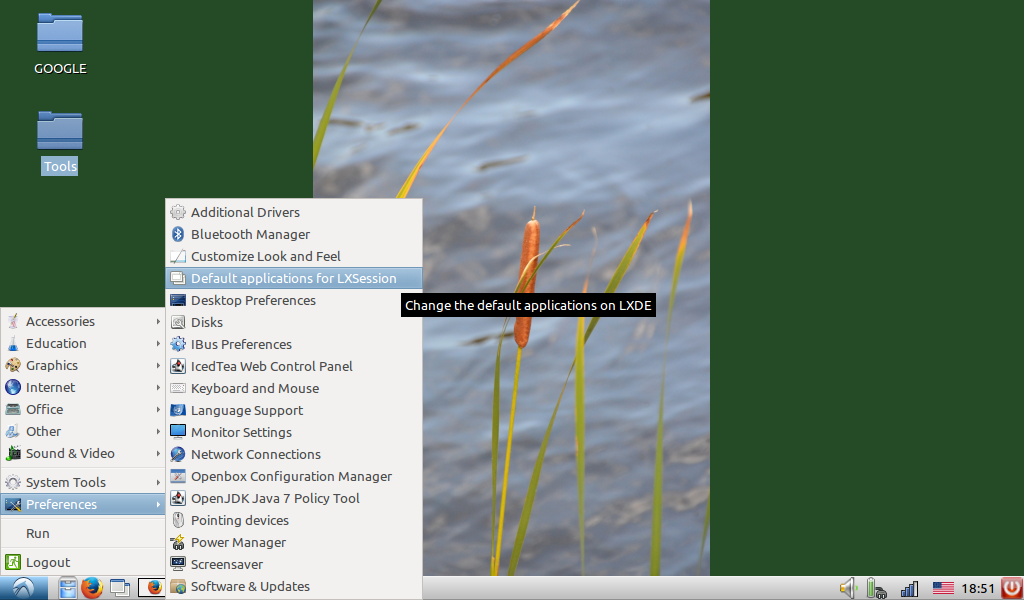
I got the wallpaper to change when I log on.  Minor fix to the command when starting up.  You start with 'Preferences' then pick 'Default applications for LXSessions'.  Click on the Autostart and create an entry like shown in the screen print.
LXSession settings


Shell command to rotate wallpaper


I then followed this up by seeing if I can put it into cron.  I did 'cron -e' from a command window and set it up to run every minute so I can see if would work.  Minutes passed and nothing happened.  I put in debug code to get the return code from pcmanfm and put it to a file.  Looking at the file I could see a return code of 1 so I knew that there was an error somewhere.  I check on-line and found an answer in stackoverflow.  I made a minor change in my script and it worked!  I reset cron to update it every 10 minutes and it still works.
cron settings to change wallpaper every 10 minutes

Bash script to change wallpaper

Monday, March 28, 2016

LINUX Bash Script skeleton code

I have been writing very simple Bash scripts for several years.  They are not complex, but, they help me automate tasks at home and work.  If I have to do something more than once I prefer to have a script automate that task. Over the years I have found that there are a lot of excellent on-line sites with information that helped me do my scripts.

From time-to-time this blog will be updated with new/updated skeleton script.

One site that I like is for color in Bash echo commands and they helped me when I was starting my use of color in scripts.  Most of my scripts don't need color, but, now and then I like to highlight something.  UBUNTU has a great forum area and I found a very nice script that allows me to quickly and easily change my background image. The link is here.

One of the first tasks I do with a new machine using LINUX and Z/OS Unix is to create a script library and place my skeleton bash template in that library.  I won't post the one from work as that is specific to the Z/OS environment and the client I work for.  The one I am posting is my personal template. When I find that I am using a piece of bash code on a regular basis I put it into the template and make it easier for me to find that one piece in the future.

My skeleton bash script is below.  I try to work with a basic naming standard.  User defined variables start with "u" and subroutines start with "z".  Everyone has their preferences, but, this is one I have been using for years and I am comfortable with it.  Version is showing as one as I finally got around to putting comments in and I figured that 1.00.00 is a good place to start.

START OF BASH SCRIPT


#! /bin/bash

# This is a skeleton script that has some of my bash codes commonly used
# in my scripts.
#
# Version:  1.00.00 - 2016/03/28 - TPT.  Initial version.
#

# ANSI Colors
zSetANSI() {

# Foreground colors:
    uFGBK="\033[30m";   #Black
    uFGLRD="\033[31m";  #Low  Red
    uFGHRD="\033[91m";  #High Red
    uFGLGR="\033[32m";  #Low  Green
    uFGHGR="\033[92m";  #High Green
    uFGLYW="\033[33m";  #Low  Yellow
    uFGHYW="\033[93m";  #High Yellow
    uFGLBU="\033[34m";  #Low  Blue
    uFGHBU="\033[94m";  #High Blue
    uFGLMG="\033[35m";  #Low  Magenta
    uFGHMG="\033[95m";  #High Magenta
    uFGLCY="\033[36m";  #Low  Cyan
    uFGHCY="\033[96m";  #High Cyan
    uFGHGY="\033[37m";  #High Gray
    uFGLGY="\033[90m";  #Low  Gray
    uFGWT="\033[97m";   #White

# Background colors:   
    uBGBK="\033[40m";   #Black
    uBGLRD="\033[41m";  #Low  Red
    uBGHRD="\033[101m"; #High Red
    uBGLGR="\033[42m";  #Low  Green
    uBGHGR="\033[102m"; #High Green
    uBGLYW="\033[43m";  #Low  Yellow
    uBGHYW="\033[103m"; #High Yellow
    uBGLBU="\033[44m";  #Low  Blue
    uBGHBU="\033[104m"; #High Blue
    uBGLMG="\033[45m";  #Low  Magenta
    uBGHMG="\033[105m"; #High Magenta
    uBGLCY="\033[46m";  #Low  Cyan
    uBGHCY="\033[106m"; #High Cyan
    uBGLGY="\033[47m";  #Low  Gray
    uBGHGY="\033[107m"; #High Gray

# Underline:
    uFGULINE="\033[4m";
   
# Blink:
    uFGBLINK="\033[5m";
   
# Reset all:   
    uFGRESET="\033[0m"
}


#
#  Get the system clock and set to a variable.
#

zGetDATE() {

# System date.  For all date options type date --h on command line.

    uSYSYY=$(date +%Y);
    uSYSMM=$(date +%m);
    uSYSDY=$(date +%d);
    uSYSDT=$uSYSYY$uSYSMM$uSYSDY;
   
    uSYSHH=$(date +%H);
    uSYSMIN=$(date +%M);
    uSYSSEC=$(date +%S);
    uSYSTM=$uSYSHH$uSYSMIN$uSYSSEC;
   
    uSYSJDT=$(date +%j);
    uSYSWK=$(date +%W);
    uSYSDOW=$(date +%w);
    uSYSDAY=$(date +%A)   
    uSYSMTH=$(date +%B)
}

# ============================================================
# END OF ALL SUBROUTINES FOR THIS SCRIPT.
# ============================================================

zSetANSI;
zGetDATE;

# Define the working variable for return codes:
uRC=0;

# Get current directory name
uDir=$( cd "$( dirname "$0" )" && pwd);

# Get process ID
uProcID=$$


#  Now echo out the stuff to the console:

clear;
echo "${uFGHRD}Process Information${uFGRESET}";
echo ;
echo "  ${uFGLGR}Directory........: " $uFGHGR $uDir;
echo "  ${uFGLGR}Process id.......: " $uFGHGR $uProcID;
echo "  ${uFGLGR}Directory........: " $uFGHGR $LOGNAME;
echo ;
echo $uFGHRD;
echo "Date information:" $uFGRESET;
echo "  ${uFGLYW}uSYSDT...........: " $uFGHYW $uSYSDT;
echo "  ${uFGLYW}uSYSTM...........: " $uFGHYW $uSYSTM;
echo "  ${uFGLYW}uSYSJDT..........: " $uFGHYW $uSYSJDT;
echo "  ${uFGLYW}uSYSWK...........: " $uFGHYW $uSYSWK;
echo "  ${uFGLYW}uSYSDOW..........: " $uFGHYW $uSYSDOW;
echo "  ${uFGLYW}uSYSDAY..........: " $uFGHYW $uSYSDAY;
echo "  ${uFGLYW}uSYSMTH..........: " $uFGHYW $uSYSMTH;

echo $uFGRESET;
echo $uFGHYW;
echo "ANSI Foreground color codes:" $uFGRESET;
echo "  RED..............: ${uFGLRD}Low ${uFGHRD}HIGH" $uFGRESET;
echo "  GREEN............: ${uFGLGR}Low ${uFGHGR}HIGH" $uFGRESET;
echo "  YELLOW...........: ${uFGLYW}Low ${uFGHYW}HIGH" $uFGRESET;
echo "  BLUE.............: ${uFGLBU}Low ${uFGHBU}HIGH" $uFGRESET;
echo "  MAGENTA..........: ${uFGLMG}Low ${uFGHMG}HIGH" $uFGRESET;
echo "  CYAN.............: ${uFGLCY}Low ${uFGHCY}HIGH" $uFGRESET;
echo "  GRAY.............: ${uFGLGY}Low ${uFGHGY}HIGH" $uFGRESET;

echo ;
echo $uFGHYW;
echo "ANSI Background color codes:" $uFGRESET;
echo "  RED..............: ${uBGLRD}Low ${uBGHRD}HIGH" $uFGRESET;
echo "  GREEN............: ${uBGLGR}${uFGBK}Low ${uBGHGR}HIGH" $uFGRESET;
echo "  YELLOW...........: ${uBGLYW}${uFGBK}Low ${uBGHYW}HIGH" $uFGRESET;
echo "  BLUE.............: ${uBGLBU}Low ${uBGHBU}${uFGBK}HIGH" $uFGRESET;
echo "  MAGENTA..........: ${uBGLMG}Low ${uBGHMG}${uFGBK}HIGH" $uFGRESET;
echo "  CYAN.............: ${uBGLCY}Low ${uBGHCY}${uFGBK}HIGH" $uFGRESET;
echo "  GRAY.............: ${uBGLGY}${uFGBK}Low ${uBGHGY}HIGH" $uFGRESET;


echo ;
echo $uFGHYW;
echo "ANSI Other color codes:" $uFGRESET;
echo ;
echo "  UNDERLINE........: ${uFGULINE}Underline" $uFGRESET;
echo "  BLINK............: ${uFGBLINK}Blink" $uFGRESET;
echo ;
echo "Script finishing with return code: " $uRC;


exit $uRC;

# ----------  END OF SCRIPT ----------