Showing posts with label encryption. Show all posts

Sunday, May 06, 2018

Looking for a new VPN for my various devices

For some time I have been making use of the Opera VPN software for my Android tablet and phone.  I liked it as it 'just worked' and didn't have a major impact on either device for performance.  However, it has been discontinued and I am now looking for a new VPN for my devices.

I don't use VPN very often, just when I am out and I need to quickly check my mail or do a quick web search.  The various malls I do go to have 'free' WIFI, but, I don't want them to harvest my information and I DON'T want anyone see my passwords for mail, web sites I log on to.  I prefer what I do and where I go is my business and no one else.

What am I looking for in a VPN:

  • Minimal impact on my Android devices.  I don't want something that is a battery hog or uses so much CPU that the machine isn't responsive.
  • Preferably open source.
  • Minimal cost.  Free would be nice as long as the ads are not obtrusive.
  • They don't record much information, preferably nothing about my connection.
  • Reasonable privacy policy.  Too many companies ask you to sign away absolutely everything in the quest to protect themselves no matter how badly they screw things up for you.  They also seem to want all of your information and be able to sell it to anyone.
  • It would be nice that there are Linux and Windows versions.  My netbook and notebook are Linux (I do have openvpn there) and while I don't travel with them often it would be nice to have a good VPN for them that is the same as my Android devices.  My one Windows box never travels with me, but, just in case it would also be nice to have the same VPN running on it.  I prefer just one package so that I know that I get consistent protection and not have to learn multiple packages.
I am not going to rush into getting a new VPN, but, I will take the time to search for my replacement as this isn't a high priority item.  So far a few sites that I will be reading and starting my search with are:

The above sites are only my starting point that I will be using.  Once I pick a few packages I will be downloading them and seeing how they run and the impact on my devices.

Update 2018/06/09:

I installed windscribe as it appears to be free, has a fair limit per month.  I don't need the fastest or most data as I only need it a few times a month.  It works well enough on the tablet and I couldn't tell it was running.

Sunday, January 01, 2017

Software and Tools - Backups

One of the most important things you can do after you secure your device is to make regular backups and just as important is to test your backups.

Why backup?

  • Hard drives fail.  It doesn't matter how new the drive is or even if it is a SSD they will fail sooner or later;
  • You lose your device or it is stolen;
  • You drop your device and now it does not work;
  • When you patch or update your operating system it fails.  It doesn't matter the O/S you are using, I have had failed Linux updates and it required me to rebuild the machine;
  • You migrate to a new device and want all the files on the old machine moved to the new machine;
  • You finger slips and you accidentally delete an important file/directory; 
  • There is a disaster (ie. fire or flood);
  • Your device(s) infected with a virus or a trojan.  Again, it doesn't matter the O/S you are using, there are nasty programs out there that works in Windows, Linux and OS/X.
If one or more of the above happens you will need a backup so that your important documents are available to you when you rebuild the device or copy to a new device.  I have had people come to me with dead and dying devices asking if I can pull off their data and they have not made any backups.  Too often I cannot recover all of their files and important documents, images, videos are lost and they don't have any backups.

Things to think about

How often do you backup? 

  • That all depends on your personal preferences and how many documents you are adding to your device;
  • If you don't create very many then it may be safe to backup infrequently (monthly); 
  • If you create a lot of files (like scanning family photos), then frequent backups (daily) may be a good thing;
  • Once you set a schedule stick to it.  I put up a recurring reminder in Google calendar to remind me of when backups should be run.  Also you can set up a recurring task in Windows and Linux (cron) to run your backup scripts on a set schedule.

How many copies do you want to keep?  

  • Again this is a personal preference, but, multiple full backups is a good thing just in case one fails for some reason; 
  • An option here is a monthly full backup and then weekly backups of new/changed (differential backups) files;
  • Another reason as backups may fail and if you have only one copy then you have nothing to go back to.  I know this happens as decades ago when at work we were doing a DRP (Disaster Recovery Plan) exercise at work and one of the corporate backup tapes failed.  It wasn't a major problem as we did keep multiple backups and restored from an older image;

Off-site location for your backups?  

  • It doesn't matter if you have a good set of backups if you cannot get access to your site;
  • How secure is the off-site.  If you have sensitive information you don't want anyone getting access to the backup;
  • You should also figure out who should have access to your backups and let them know where it is and how they can get access to the backups if required;

Media for backups.  

  • Decades ago floppies were the media, then CDs followed by USB drives;
  • When you backup make sure that the tools, hardware and software is there to allow you to read the backups.  An example of this is some time ago I had to pull off backups from my father-in-law 3.5" floppy drives as he didn't have a floppy drive in his machine.  We were lucky in that I have an external 3.5" USB floppy drive for this and it was set up in Linux.  I also have an external CD drive and a blu-ray drive (call me paranoid) so I can pull files from backups in that format;
  • To the cloud.  Don't depend on that as your main backup as it may not be there when you need it.  I like Google drive for a secondary backup myself and the bonus is that the files I put there are available anywhere I have a web browser (and the firewall allows access).  With the various sites getting hacked I also don't keep files there that are sensitive and when I do put up a file of that nature I use encryption on the file/directory.  I also have a small script using GRIVE in Linux to pull a backup from GOOGLE drive to my machine.

Software and file format for backups.  

  • Over time operating systems do change and the software that did the original backup may not run on your new device and the new devices may not even be able to read your backups;
  • I tend to work with the lowest common denominator for backups that does work across platforms.  I prefer to use "ZIP" files as I know Windows and Linux both can work with that file format.  I assume OS/X will be able to read them too, but, I don't use that operating system so I am not 100% sure;
  • On my Linux machine I am partial to KBACKUP.  It is fairly easy to set up and use and it stores the files in a format that I can open in an Linux distro and Windows;
  • On my Windows box I use a simple XCOPY routine.  It isn't pretty, but, it works and the files are in a format that my Linux machines can read;
  • For my Android devices they get backed up to Google drive;
  • Several times a year I take one of my backups and plug it into a different machine to see if it is readable and I can pull one or more files off the backup.  Make sure what is backed up can be restored!  It is also a quick and easy test to see if your restore steps work and if there is anything else you should be doing when restoring from a backup;

When you restore.

  • If the restore is due to a virus or a trojan I strongly recommend that you don't ever use your backups until you have a clean and patched machine.  If the machine is still infected and the media you are using can be written to you don't want those backup files corrupted;
  • Make a checklist of what you need to do the restore and the steps performed when doing a restore.  This includes steps on how to verify that the restore worked;

My KBACKUP routine

Here are screen shots of my starting KBACKUP, running the backup and when it finishes.
Shortcut in my toolbox

Loading my backup profile

Directory & file list for backup

Backup running

Backup done with filename

Monday, November 28, 2016

Software and Tools - Email

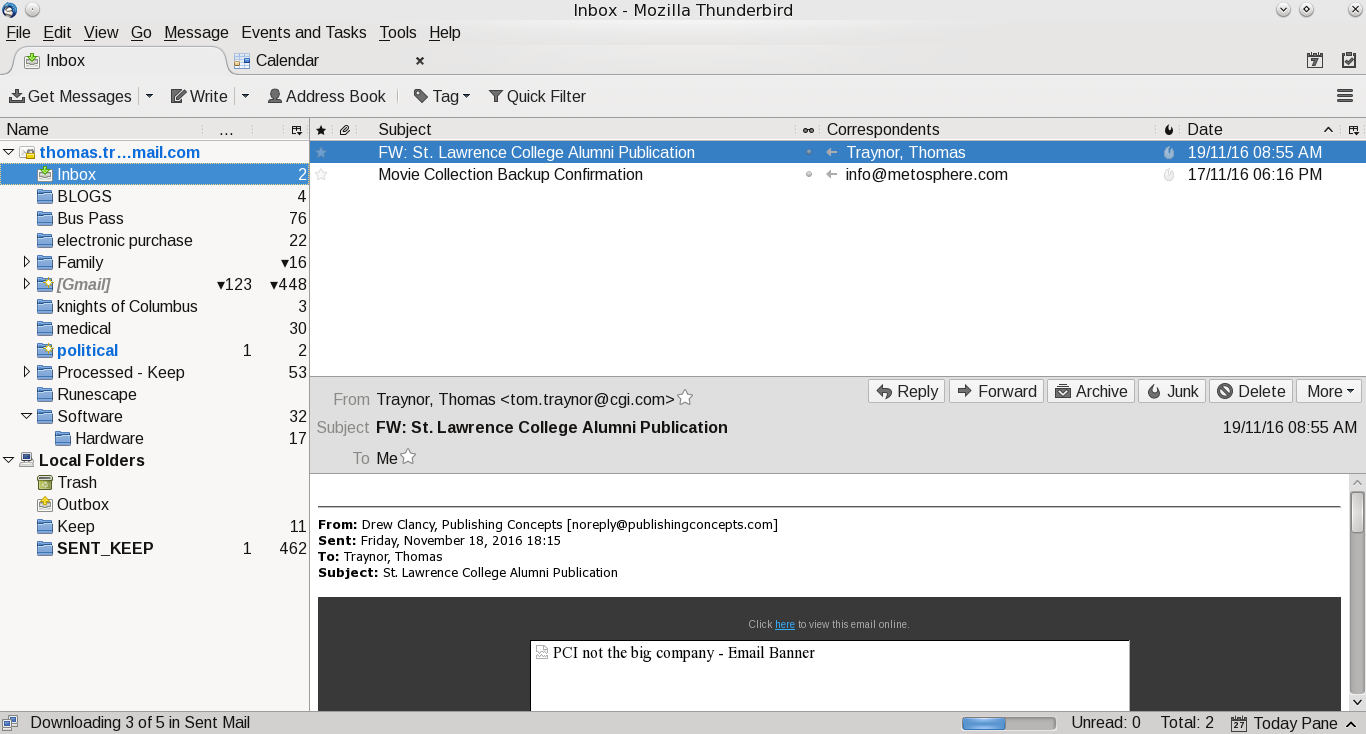
This is the fourth blog on various tools that I use.  Email is a personal preference for what works for you.  Most people I suspect are using Outlook as that is preferred corporate email client and it comes as part of Windows.  My personal preference is actually multiple clients.  My main one is Thunderbird.  It works well in Windows and Linux.  For my Android devices I have two.  GMAIL for Google email (backup client for my Android tablet) and mailbox provided by my ISP.  The last client I use is INBOX from Google.  INBOX is only for my main GMAIL account.  I like this client it as it stays out of my way and allows me to quickly organize and process my mail.

Thunderbird, like Outlook, allows you to create mail rules to categorize (or delete) your email based on rules.  Where I work they use Outlook and I have dozens of rules based on the sender.  The screen prints further in this blog shows the screen, but, at this time my Linux client doesn't have rules as the Windows machine is my main work machine for email (mail from the boss is highest priority and flagged to action immediately, projects go into their own folder).  It doesn't matter what client you use, rules allows you to order your work and focus on what is important.  

In Thunderbird I added an extension to link to my Google Calendar.  I find that handy as I can quickly add/change/delete events when something hits my inbox.  Outlook has that built in and it is a handy option no matter what client you use.

The one thing I never do is open attachments in emails when I don't know the sender.  Even when I know the sender I don't open it up (even in Linux) until I ask if they have sent that file.  My personal preference is to create a folder in my Google Drive, give them access and ask them to upload the file there.  I also have auto-load images in Thunderbird turned off.  Most of the times I don't need to see 'pretty' images and focus just on the text of the message.

The one last client I use is the Google web-mail client.  I like this tool as I can be anywhere and as long as I have access to the internet and a browser I can pick up my mail.

For me I have multiple personal email accounts.
  • My main Google account (linked to this blog);
  • A throwaway account I use for when I am not sure the site will not spam my main Google account.  When it gets too bad I just dump it and create a new throwaway account;
  • A Yahoo account.  This is from many years ago when I didn't have Google mail.  I keep it as it is handy like my throwaway Google account;
  • A Google account for my online gaming.  Some of the sites asks you to register your email account and excluding one game (Runescape) they all use this account;
  • My ISP provides email accounts and I have one set up.  This is for notifications from the ISP and my family usually sends email to this one;

 A few suggestions for your email:

  • If you are using the email from your ISP see if they have spam filters.  If they do, turn them on and use them.  It may not be perfect, but, I find that the one I use is over 99% accurate.  The few times it isn't I flag the email as legitimate and the next time it shows up in my inbox without a problem;
  • If you have an anti-virus and it can integrate with your email client turn it on!  It is another level of defense and I don't see the impact to my client in Windows; 
  • Make use of mail filters.  I use them to categorize my mail and it allows me to focus on what I deem to be important;
  • Guard your email account.  Have a main one for friends and family and only a few others.  For everything else create a throwaway.  If the mail is important you can either forward it to your main email, or, have it as an additional account in your mail client (like Thunderbird does);
Other tools:
  • For those who want to digitally sign your email or encrypt Thunderbird has a support page for this.  At this time I haven't added one; 

Screen Shots of my mail clients

Google Inbox for Android:


My main folder, I like it clean

Google Email for Android:

Main, again clean inbox


Thunderbird:

Mail

Calendar

Extensions

Mail filers

Rules for mail filters