Monday, November 28, 2016

Software and Tools - Email

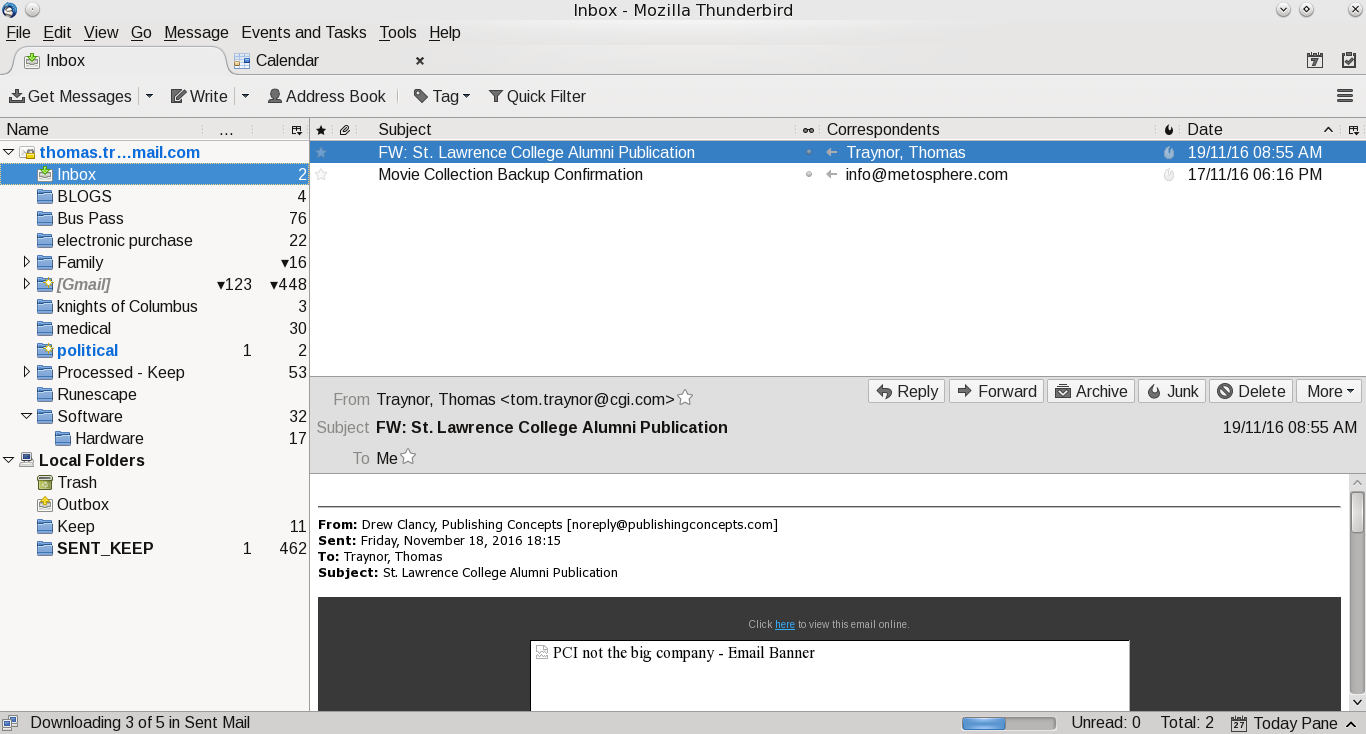
This is the fourth blog on various tools that I use.  Email is a personal preference for what works for you.  Most people I suspect are using Outlook as that is preferred corporate email client and it comes as part of Windows.  My personal preference is actually multiple clients.  My main one is Thunderbird.  It works well in Windows and Linux.  For my Android devices I have two.  GMAIL for Google email (backup client for my Android tablet) and mailbox provided by my ISP.  The last client I use is INBOX from Google.  INBOX is only for my main GMAIL account.  I like this client it as it stays out of my way and allows me to quickly organize and process my mail.

Thunderbird, like Outlook, allows you to create mail rules to categorize (or delete) your email based on rules.  Where I work they use Outlook and I have dozens of rules based on the sender.  The screen prints further in this blog shows the screen, but, at this time my Linux client doesn't have rules as the Windows machine is my main work machine for email (mail from the boss is highest priority and flagged to action immediately, projects go into their own folder).  It doesn't matter what client you use, rules allows you to order your work and focus on what is important.  

In Thunderbird I added an extension to link to my Google Calendar.  I find that handy as I can quickly add/change/delete events when something hits my inbox.  Outlook has that built in and it is a handy option no matter what client you use.

The one thing I never do is open attachments in emails when I don't know the sender.  Even when I know the sender I don't open it up (even in Linux) until I ask if they have sent that file.  My personal preference is to create a folder in my Google Drive, give them access and ask them to upload the file there.  I also have auto-load images in Thunderbird turned off.  Most of the times I don't need to see 'pretty' images and focus just on the text of the message.

The one last client I use is the Google web-mail client.  I like this tool as I can be anywhere and as long as I have access to the internet and a browser I can pick up my mail.

For me I have multiple personal email accounts.
  • My main Google account (linked to this blog);
  • A throwaway account I use for when I am not sure the site will not spam my main Google account.  When it gets too bad I just dump it and create a new throwaway account;
  • A Yahoo account.  This is from many years ago when I didn't have Google mail.  I keep it as it is handy like my throwaway Google account;
  • A Google account for my online gaming.  Some of the sites asks you to register your email account and excluding one game (Runescape) they all use this account;
  • My ISP provides email accounts and I have one set up.  This is for notifications from the ISP and my family usually sends email to this one;

 A few suggestions for your email:

  • If you are using the email from your ISP see if they have spam filters.  If they do, turn them on and use them.  It may not be perfect, but, I find that the one I use is over 99% accurate.  The few times it isn't I flag the email as legitimate and the next time it shows up in my inbox without a problem;
  • If you have an anti-virus and it can integrate with your email client turn it on!  It is another level of defense and I don't see the impact to my client in Windows; 
  • Make use of mail filters.  I use them to categorize my mail and it allows me to focus on what I deem to be important;
  • Guard your email account.  Have a main one for friends and family and only a few others.  For everything else create a throwaway.  If the mail is important you can either forward it to your main email, or, have it as an additional account in your mail client (like Thunderbird does);
Other tools:
  • For those who want to digitally sign your email or encrypt Thunderbird has a support page for this.  At this time I haven't added one; 

Screen Shots of my mail clients

Google Inbox for Android:


My main folder, I like it clean

Google Email for Android:

Main, again clean inbox


Thunderbird:

Mail

Calendar

Extensions

Mail filers

Rules for mail filters


Thursday, November 24, 2016

Software and Tools - Antivirus

The next thing on the list of things to do is a good antivirus package after you install your favourite browser and before you start serious web surfing.  Again, this is a personal preference and it all depends on what you want, need and are willing to pay for.  There are those who say it is all snake oil and useless.  They are welcome to their opinion and in my not so humble opinion it is needed.  It is another level of defense for you that will stop the known nasty software out there.  Why make it easy for hackers to take over your system and use your bandwidth to take down sites, steal your identity?  Will it be 100% effective, maybe not, but if they want to get into my system they will need to work on it and not have an open door.

There are a number of sites that do reviews and I have a list five sites I know.  There are a lot more, but, I don't know them, their methodology and if they got paid to do the reviews. 

For myself I was looking for an package that works in
  • Windows (I still have a machine left running Windows 10)
  • Android for our tablets via the Google Play store.
  • Android phone.  This is a low end model with limited resources.
  • Linux.
I found one common package that works very well in Windows and Android, but, right now my distro does not offer the Linux version of that product.  It does not slow down my machines, especially the low end phone and did catch crap that tried to get installed when someone sent me an email.  Avast works well enough, has a free version that does most of what I want and need.  The version does show ads, but, they are small and unobtrusive for me and don't slow my systems down.  For Linux I am looking at ClamAV as that is available in the distro of Linux I am using.  UBUNTU community has a good small page of various packages you can check out.

The Android screens looks like the following:


The Windows screens looks like the following:


Please remember, just because you are running an antivirus program you can surf wherever you want, click on anything, install anything and open questionable emails.  Nothing is 100% and safe surfing and email practices are required.  Antivirus software just gives you another level of defense.  You also should be keeping your software up to date and making regular backups (a future blog).

Saturday, November 19, 2016

Software and Tools - Browsers

This is the second in a group of blogs on software, tools and repositories.  One of the main tools I use and I suspect the majority of people is a web browser.  There are a number of great browsers out there and the one you use and like depends on your personal preferences (and biases).  For me since I run a Windows laptop (gaming), Android (tablets and phones) and Linux (laptops and netbook) I prefer Firefox and Chrome.  They run equally well on a cell phone right up to the laptop I am composing this blog on.  The Windows laptop (Windows 10) has Edge on, but I don't run it.  I may be biased, but, I don't trust the security on it and how much it is reporting back to MS about my searches and browsing habits.  I know Chrome and Firefox does do some reporting, but, so far they haven't abused my trust there.

This won't be all inclusive, but, a quick tour of my basic setup and hopefully will give you an idea of what they look like and a couple of things I added to assist me and secure my browsing.

If you use Windows click on Firefox if you want to go to the Mozilla site,  click on Chrome if you want to go to the Chrome site.  If you are using Android it is in the Play store and for just about every distribution of Linux it is part of the repositories that you can install (for me that is Synaptic).

For the rest of this blog the screen shots are from my Linux machine, but, Android and Windows have a similar layout and look-and-feel.  For all of the screenshots I used KSnapshotGwenview is used for quick-and-dirty edits (like rotate, resize and rename).  Google Drive is used to store all of my blog images and the GRIVE tool syncs that up for me (with my writing a BASH script front-end, my previous BLOG on that).

Firefox

Once you install Firefox and launch it you will get a screen something like below.

It is a rather plain and simple screen.  This is my personal preference as I don't like or want a lot of clutter.  I have turned off the menu bar, bookmark toolbar and the status bar.

I did add a few extensions (from the Mozilla site) for the status bar and for shutting down those annoying ads.


My Plugins are default to my Linux distro.  When there are bug fixes I use Synaptic to update when they are available.  I still have Flash installed, as much as I hate it for the security holes I still need it for accessing corporate materials when I log into the company site.


To see preferences click on the icon at the top right (looks like a hamburger) and click on the preferences icon (looks like a cog).  You will see a number of options that you can click on and are presented with a variety of settings.  On content I turned off the option to play DRM protected content and to block pop-up windows.  I also changed the font to Arial as I find that easier on my eyes.


For privacy I turned it up to as high as I can go.  I know sites can still snoop, but, I want them to know if they want my information they should ask me first.

For security I also have that set to maximum.


For good measure I use  uBlock Origin to shut down as much of the annoying ads and tracking when I do surf.  I turn it off for sites that respect me and don't flood me with annoying ads.  To see what the dashboard looks like you will need to keep on reading as it is in the Chrome section.

To summarize my settings:


  • Check to see if Firefox is my default browser;
  • Show blank page at start;
  • Search right now defaults to Google, I did disable Bing and Yahoo;
  • Disable play DRM;
  • Enable pop-up protection;
  • Privacy tracking on for private windows;
  • Never remember history;
  • Security, Warn & block all turned on!
  • Sync bookmarks, I have that turned on so it is easy to keep phone, tablet and laptops synced to the same set of bookmarks;
  • Downloads, ask me where to save; 
  • uBlock Origin, set up to hide as much crap as possible.  Good sites I open up;
  • Advanced I left at their defaults. 

Chrome

My other browser is Chrome.  There are times that sites have problems with Firefox and I use that.  It is also set up to link to my personal Google calendar and to use Google Docs.  Part of the time I run it for Facebook to chat with family and post various updates and use Firefox for general web browsing and gaming (Runescape).   Like Firefox I have a minimal screen display, I really don't like clutter.

To go to your settings click the vertical ... on the top right side, then click on settings.


By default the advanced settings are not displayed, scroll down to the bottom and click on +Show advanced settings.  You can see your browsing history, Extensions and Settings.  For privacy you can click on content settings and it pops up a privacy setting screen.

For extensions it will show what you have installed.  At the bottom it has Get more extensions that takes you the Chrome Web Store.  I really suggest you use just that site as you know that Google has done some checks on the quality and security of the extensions.  I know nasty extensions can slip in, but, when found they get yanked PDQ.

Like in Firefox I use uBlock origin.  It is small, light and very configurable.  I used to use Ad-Block, but, when they went to white listing ad sites I dumped it.  I pick what ads are presented to me and I will retain full control of that.

To summarize my settings:

  • Show blank page on startup;
  • Google is the default search page;
  • No 'Guest' browsing;
  • Cookies, clears when I shut down Chrome and 3rd party is blocked;
  • Let me choose when to run plug-in;
  • Do not allow tracking;
  • All other content settings at default;
  • Downloads, ask me where to save;
  • Cloud print is on, I use this only for stuff that isn't sensitive;
  • uBlock Origin, set up to hide as much crap as possible.  Good sites I open up;


Summary

Hopefully this is of use and a good starting point for your using either Firefox or Chrome as your main browsers.